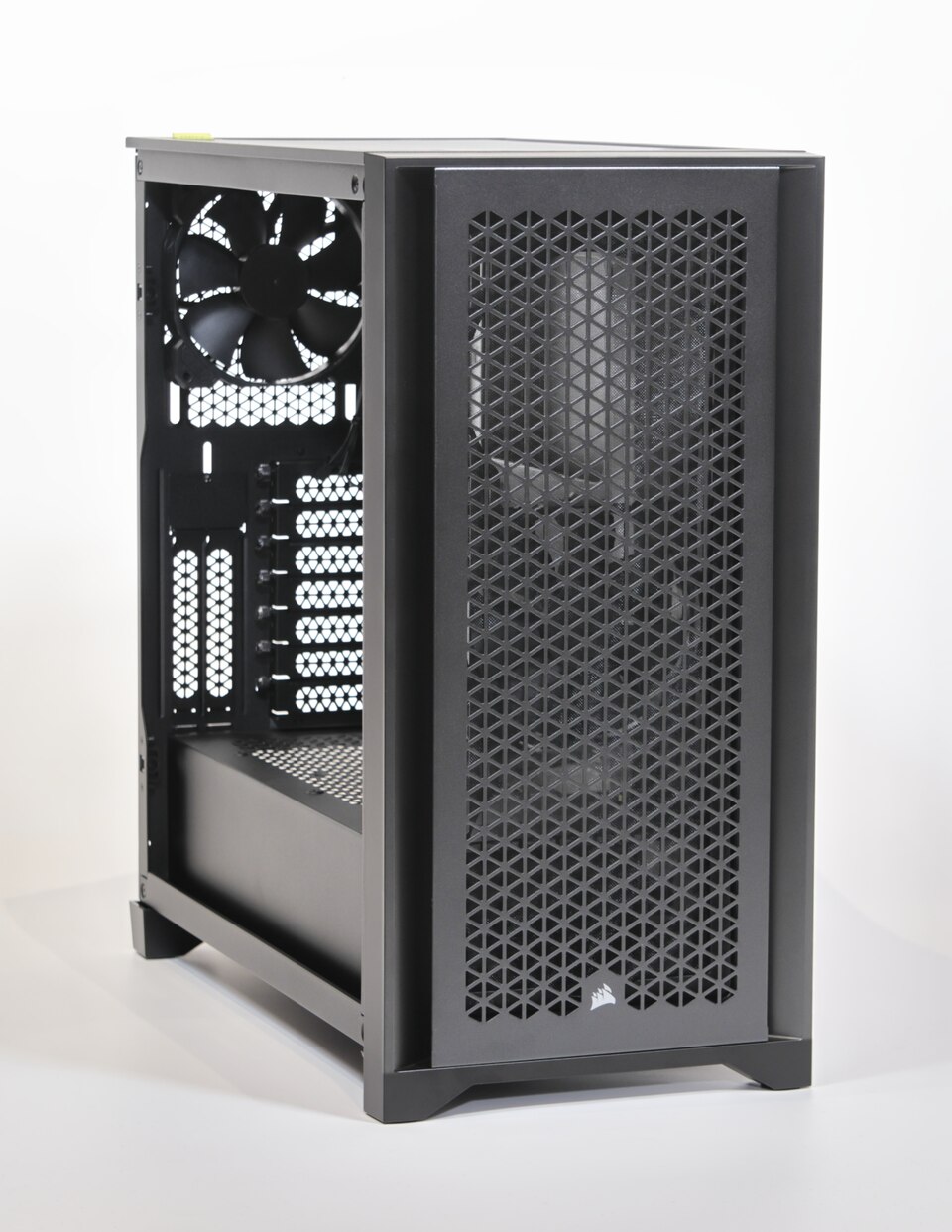
CaseIt holds and protects all the components, and organizes the airflow.Fresh air usually comes in at the front; hot air goes out at the back and the top.Check there is room for the motherboard, the graphics card and the CPU cooler.Photo: PJ, CC BY-SA 4.0 Full towerBoards up to E-ATX, lots of room.Mid towerThe most common, for an ATX board.Mini towerMicro-ATX board.Mini PC (SFF)Very compact: Mini-ITX or the manufacturer's own board.
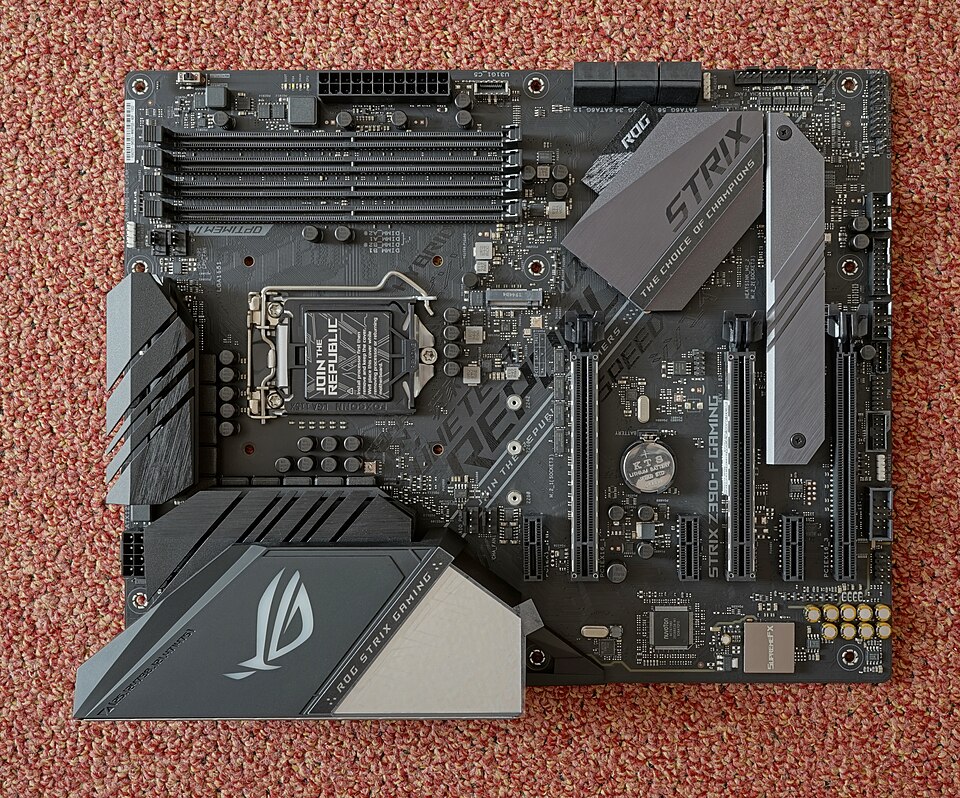
MotherboardIt connects all the components. Its socket and chipset decide which processor and RAM you can use.Open the “Motherboard” tab to see each connector.Photo: PantheraLeo1359531, CC BY 4.0 Form factorsE-ATX305 × 330 mmATX1995305 × 244 mmMicro-ATX1997244 × 244 mmMini-ITX2001170 × 170 mm
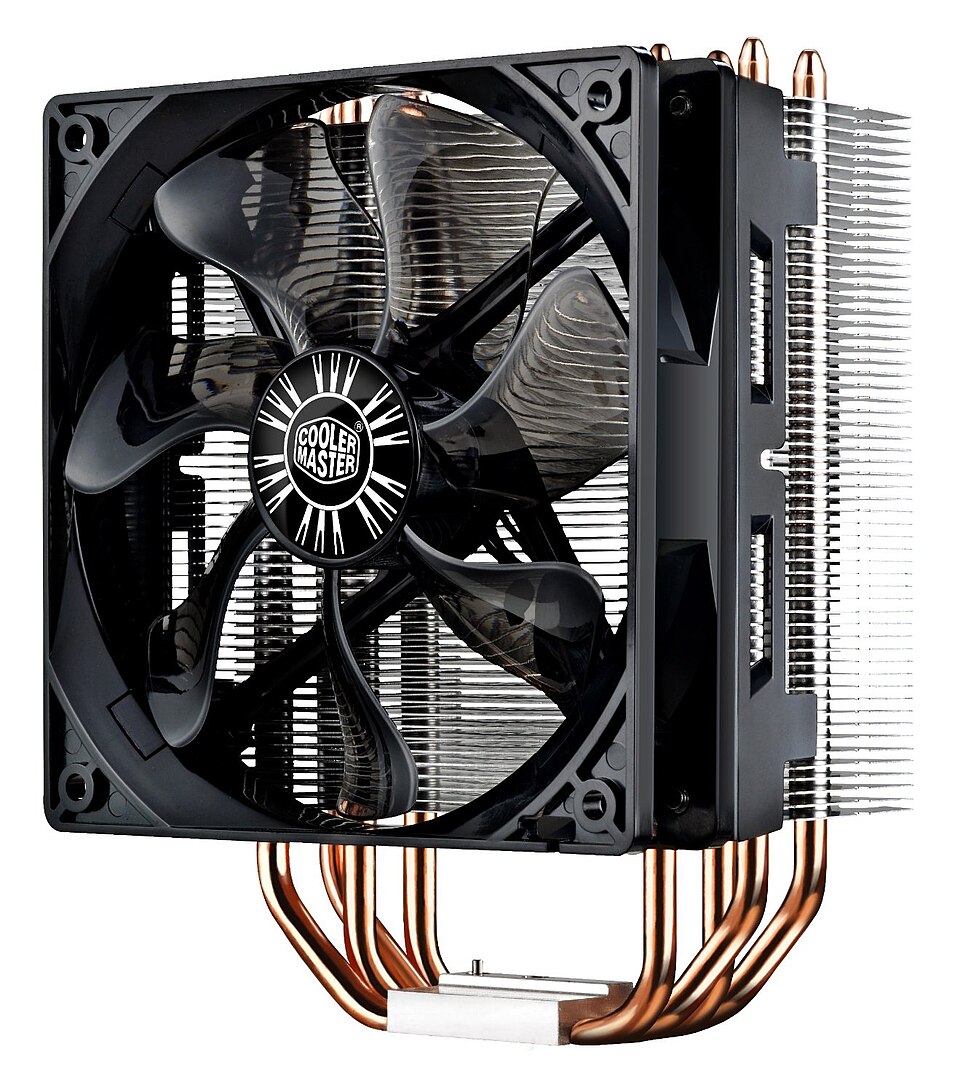
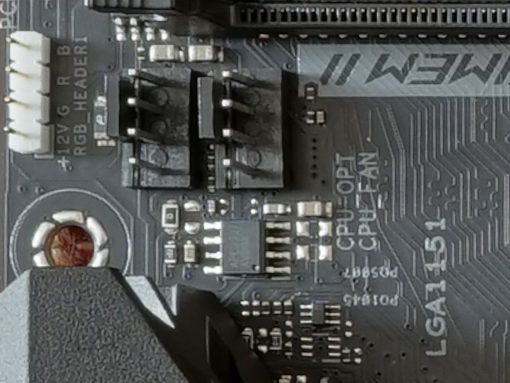
CPU coolerIt removes heat from the processor. Without it, the PC slows down, then shuts down to protect itself.Thermal paste fills the tiny gaps between the processor and the heatsink.The fan plugs into the CPU_FAN header.Photo: osman gucel, CC BY 2.0 CPU coolerHeatsink and fan. Simple and reliable.AIO water coolingClosed liquid loop, with a pump and a radiator.PassiveHeatsink only, silent, for low-power processors.
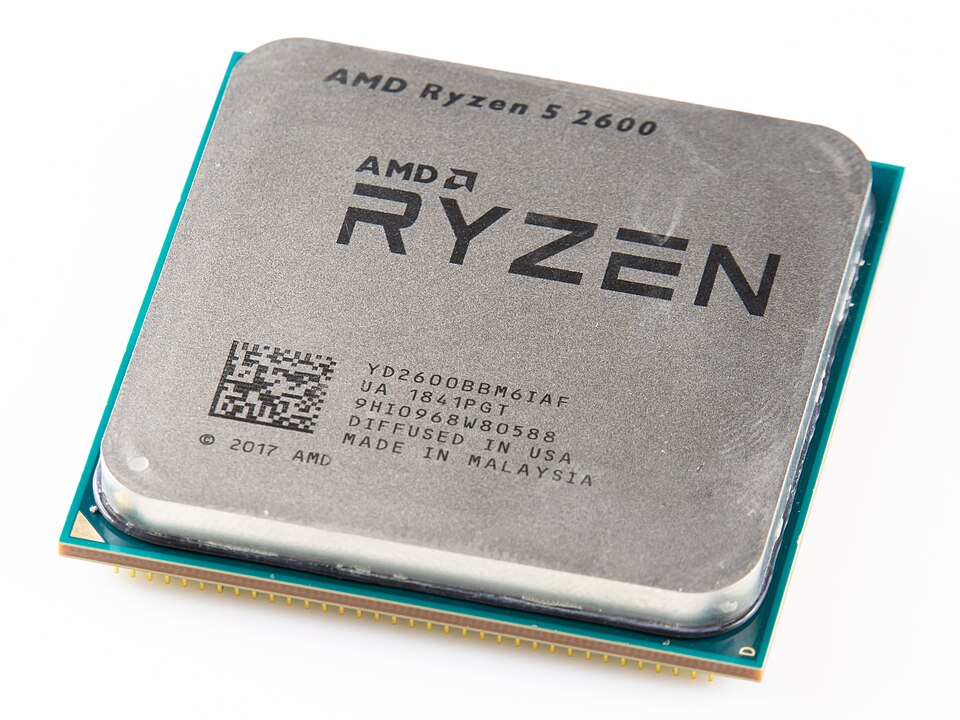
Processor (CPU)It executes the programs' instructions. It is the component that does the calculations.Core: processing unit.Thread: execution thread, sometimes two per core.Frequency: cycles per second, in GHz.Cache: very fast memory (L1, L2, L3).TDP: heat to remove, in watts.Photo: Fritzchens Fritz, CC0 Which RAM for which processor? I choose my processorChoose…Pentium III, 1999, Slot 1, Socket 370Pentium 4, 2000, Socket 423, 478Pentium 4, Pentium D, 2004, LGA 775Core 2 Duo, Core 2 Quad, 2006, LGA 775Core i7-900 (1st generation), 2008, LGA 1366Core i3, i5, i7 (1st generation), 2009, LGA 1156Core 2nd generation, 2011, LGA 1155Core 3rd generation, 2012, LGA 1155Core 4th generation, 2013, LGA 1150Core 5th generation, 2015, LGA 1150Core 6th generation, 2015, LGA 1151Core 7th generation, 2017, LGA 1151Core 8th generation, 2017, LGA 1151 (chipsets 300)Core 9th generation, 2018, LGA 1151 (chipsets 300)Core 10th generation, 2020, LGA 1200Core 11th generation, 2021, LGA 1200Core 12th generation, 2021, LGA 1700Core 13th generation, 2022, LGA 1700Core 14th generation, 2023, LGA 1700Core Ultra 200S, 2024, LGA 1851Core Ultra 200S Plus, 2026, LGA 1851Athlon XP, 2001, Socket AAthlon 64, 2003, Socket 754Athlon 64, Athlon 64 X2, 2004, Socket 939Athlon 64 X2, 2006, AM2Phenom, 2007, AM2+Phenom II, Athlon II, 2009, AM3FX, 2011, AM3+A-Series (Llano), 2011, FM1A-Series (Trinity, Richland), 2012, FM2A-Series (Kaveri), 2014, FM2+Ryzen 1000, 2017, AM4Ryzen 2000, 2018, AM4Ryzen 3000, 2019, AM4Ryzen 5000, 2020, AM4Ryzen 7000, 2022, AM5Ryzen 8000G, 2024, AM5Ryzen 9000, 2024, AM5 Or I choose my RAMChoose…SDRDDRDDR2DDR3DDR4DDR5 The answer appears here. See the full list of processorsIntel Pentium III 1999, Slot 1, Socket 370: SDR (PC100 or PC133)Intel Pentium 4 2000, Socket 423, 478: SDR, DDR, RDRAM (Depending on the chipset, up to DDR-400)Intel Pentium 4, Pentium D 2004, LGA 775: DDR, DDR2 (Depending on the chipset)Intel Core 2 Duo, Core 2 Quad 2006, LGA 775: DDR2, DDR3 (Depending on the chipset)Intel Core i7-900 (1st generation) 2008, LGA 1366: DDR3 (DDR3-1066, triple channel)Intel Core i3, i5, i7 (1st generation) 2009, LGA 1156: DDR3 (DDR3-1333)Intel Core 2nd generation 2011, LGA 1155: DDR3 (DDR3-1333)Intel Core 3rd generation 2012, LGA 1155: DDR3 (DDR3-1600)Intel Core 4th generation 2013, LGA 1150: DDR3 (DDR3-1600)Intel Core 5th generation 2015, LGA 1150: DDR3 (DDR3L-1600)Intel Core 6th generation 2015, LGA 1151: DDR3, DDR4 (DDR4-2133 or DDR3L-1600)Intel Core 7th generation 2017, LGA 1151: DDR3, DDR4 (DDR4-2400 or DDR3L-1600)Intel Core 8th generation 2017, LGA 1151 (300 chipsets): DDR4 (DDR4-2666, i3: 2400)Intel Core 9th generation 2018, LGA 1151 (300 chipsets): DDR4 (DDR4-2666, i3: 2400)Intel Core 10th generation 2020, LGA 1200: DDR4 (DDR4-2933, i3 and i5: 2666)Intel Core 11th generation 2021, LGA 1200: DDR4 (DDR4-3200)Intel Core 12th generation 2021, LGA 1700: DDR4, DDR5 (DDR5-4800 or DDR4-3200)Intel Core 13th generation 2022, LGA 1700: DDR4, DDR5 (DDR5-5600 or DDR4-3200, entry-level models: DDR5-4800)Intel Core 14th generation 2023, LGA 1700: DDR4, DDR5 (DDR5-5600 or DDR4-3200, entry-level models: DDR5-4800)Intel Core Ultra 200S 2024, LGA 1851: DDR5 (DDR5-6400)Intel Core Ultra 200S Plus 2026, LGA 1851: DDR5 (DDR5-7200)AMD Athlon XP 2001, Socket A: SDR, DDR (Depending on the chipset, up to DDR-400)AMD Athlon 64 2003, Socket 754: DDR (DDR-400)AMD Athlon 64, Athlon 64 X2 2004, Socket 939: DDR (DDR-400, dual channel)AMD Athlon 64 X2 2006, AM2: DDR2 (DDR2-800)AMD Phenom 2007, AM2+: DDR2 (DDR2-1066)AMD Phenom II, Athlon II 2009, AM3: DDR2, DDR3 (DDR3-1333, or DDR2 on an AM2+) boardAMD FX 2011, AM3+: DDR3 (Up to DDR3-1866)AMD A-Series (Llano) 2011, FM1: DDR3 (Up to DDR3-1866)AMD A-Series (Trinity, Richland) 2012, FM2: DDR3 (DDR3-1866 to 2133)AMD A-Series (Kaveri) 2014, FM2+: DDR3 (DDR3-2133)AMD Ryzen 1000 2017, AM4: DDR4 (DDR4-2666)AMD Ryzen 2000 2018, AM4: DDR4 (DDR4-2933)AMD Ryzen 3000 2019, AM4: DDR4 (DDR4-3200)AMD Ryzen 5000 2020, AM4: DDR4 (DDR4-3200)AMD Ryzen 7000 2022, AM5: DDR5 (DDR5-5200)AMD Ryzen 8000G 2024, AM5: DDR5 (DDR5-5200)AMD Ryzen 9000 2024, AM5: DDR5 (DDR5-5600) When two RAM types are possible, the motherboard decides. Always check its specifications.Socket typesLGAThe pins are on the motherboard. Recent Intel, AMD AM5.PGAThe pins are under the processor. AMD up to AM4.BGAThe processor is soldered. Laptops and mini PCs.
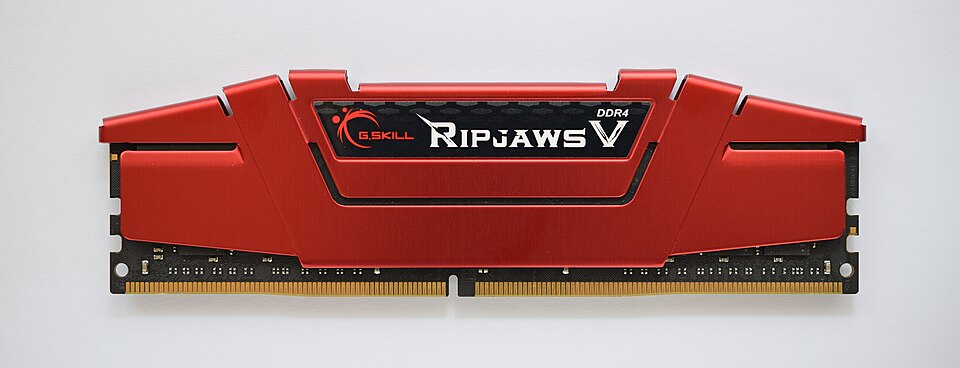
Memory (RAM)It holds the data in use. It empties when the PC turns off.DIMM: large module for desktop PCsSO-DIMM: small module for laptopsCL: latency, lower is better at the same speedDual channel: two identical modules, almost double the bandwidthECC: corrects some errors, mainly for serversXMP, EXPO: faster profiles to enable in the UEFIPhoto: ElooKoN, CC BY-SA 4.0 Generations are not interchangeable: a DDR4 module does not fit in a DDR5 slot.All generationsDDR52020288 pins like DDR4, but a different notch. Power is regulated on the module. Standard in 2020, consumer PCs in 2021.4000 to 8800 MT/s1.1 V288 DIMM pins262 SO-DIMM pinsAll speedsDDR5-4000 PC5-32000, 32 GB/sDDR5-4400 PC5-35200, 35.2 GB/sDDR5-4800 PC5-38400, 38.4 GB/sDDR5-5200 PC5-41600, 41.6 GB/sDDR5-5600 PC5-44800, 44.8 GB/sDDR5-6000 PC5-48000, 48 GB/sDDR5-6400 PC5-51200, 51.2 GB/sDDR5-7200 PC5-57600, 57.6 GB/sDDR5-8000 PC5-64000, 64 GB/sDDR5-8800 PC5-70400, 70.4 GB/sDDR42014The edge of the module is slightly curved to make insertion easier.1600 to 3200 MT/s1.2 V288 DIMM pins260 SO-DIMM pinsAll speedsDDR4-1600 PC4-12800, 12.8 GB/sDDR4-1866 PC4-14900, 14.9 GB/sDDR4-2133 PC4-17000, 17 GB/sDDR4-2400 PC4-19200, 19.2 GB/sDDR4-2666 PC4-21300, 21.3 GB/sDDR4-2933 PC4-23400, 23.5 GB/sDDR4-3200 PC4-25600, 25.6 GB/sDDR32007The DDR3L variant runs at 1.35 V and is found mainly in laptops.800 to 2133 MT/s1.5 V240 DIMM pins204 SO-DIMM pinsAll speedsDDR3-800 PC3-6400, 6.4 GB/sDDR3-1066 PC3-8500, 8.5 GB/sDDR3-1333 PC3-10600, 10.7 GB/sDDR3-1600 PC3-12800, 12.8 GB/sDDR3-1866 PC3-14900, 14.9 GB/sDDR3-2133 PC3-17000, 17 GB/sDDR22003Same number of pins as DDR3, but a different notch.400 to 1066 MT/s1.8 V240 DIMM pins200 SO-DIMM pinsAll speedsDDR2-400 PC2-3200, 3.2 GB/sDDR2-533 PC2-4200, 4.3 GB/sDDR2-667 PC2-5300, 5.3 GB/sDDR2-800 PC2-6400, 6.4 GB/sDDR2-1066 PC2-8500, 8.5 GB/sDDR2000Two transfers per cycle: that is the “double data rate”. First chips in 1998, standard in 2000.200 to 400 MT/s2.5 V184 DIMM pins200 SO-DIMM pinsAll speedsDDR-200 PC-1600, 1.6 GB/sDDR-266 PC-2100, 2.1 GB/sDDR-333 PC-2700, 2.7 GB/sDDR-400 PC-3200, 3.2 GB/sSDR1993One transfer per clock cycle.66 to 133 MT/s3.3 V168 DIMM pins144 SO-DIMM pinsAll speedsSDR-66 PC66, 0.53 GB/sSDR-100 PC100, 0.8 GB/sSDR-133 PC133, 1.07 GB/sDiagrams: the position of the notch is approximate; it only shows that each generation is different.Soldered RAM in laptops and phonesLPDDR2006Up to 400 MT/sLPDDR22009Up to 1066 MT/sLPDDR32012Up to 2133 MT/sLPDDR42014Up to 3200 MT/sLPDDR4X2017Up to 4266 MT/sLPDDR52019Up to 6400 MT/sLPDDR5X2021Up to 10667 MT/sLPDDR62025Up to 14400 MT/sOld RAMFPM1980s and early 1990s. SIMM modules with 30 or 72 pins.EDOAround 1995. An improvement on FPM, mostly in 72-pin SIMMs.RDRAM1999 on PCs. RIMM modules, PC800 being the best known. Expensive and hot, it was replaced by DDR.Calculating the bandwidthMT/s × 8 = bandwidth of one module in MB/s. For DDR4-3200: 3200 × 8 = 25,600 MB/s, hence the name PC4-25600.
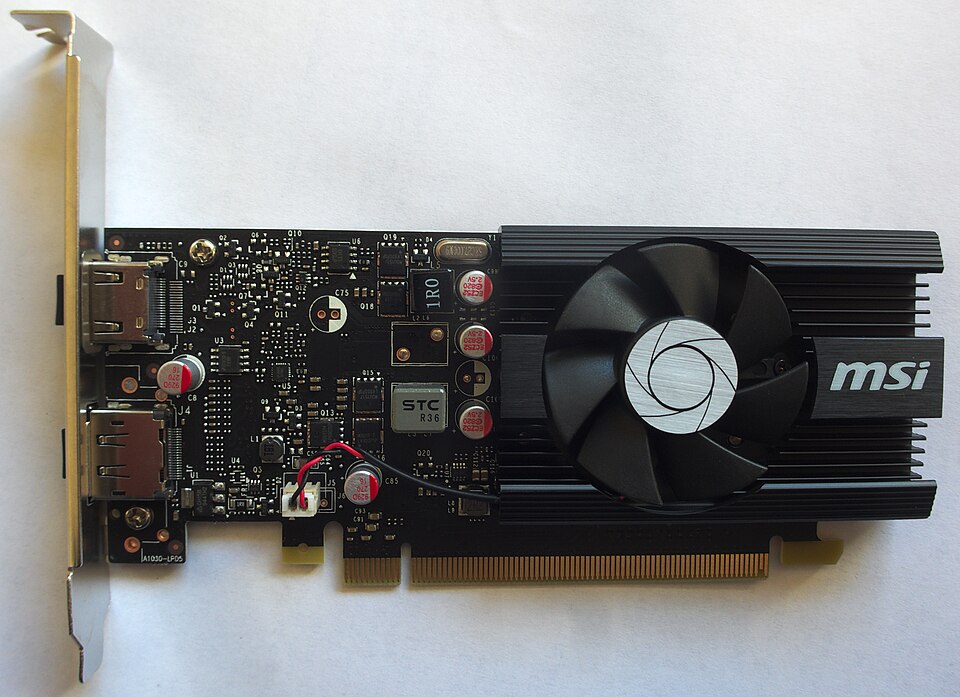
Graphics card (GPU)It computes the image sent to the screen. It can also be built into the processor.It goes in the PCI Express x16 slot.Powerful models need a PCIe or 12V-2x6 power connector.VRAM is its memory.Photo: Gary Houston, CC0 Video memoryGDDR32004Older cardsGDDR52008Very common in the 2010sGDDR62018Recent cardsGDDR6X2020High-end cardsGDDR72025Latest generation on PCsPCI Express x16 bandwidthPCIe 1.020034 GB/sPCIe 2.020078 GB/sPCIe 3.0201016 GB/sPCIe 4.0201732 GB/sPCIe 5.0201963 GB/sPCIe 6.02022121 GB/s, first for servers
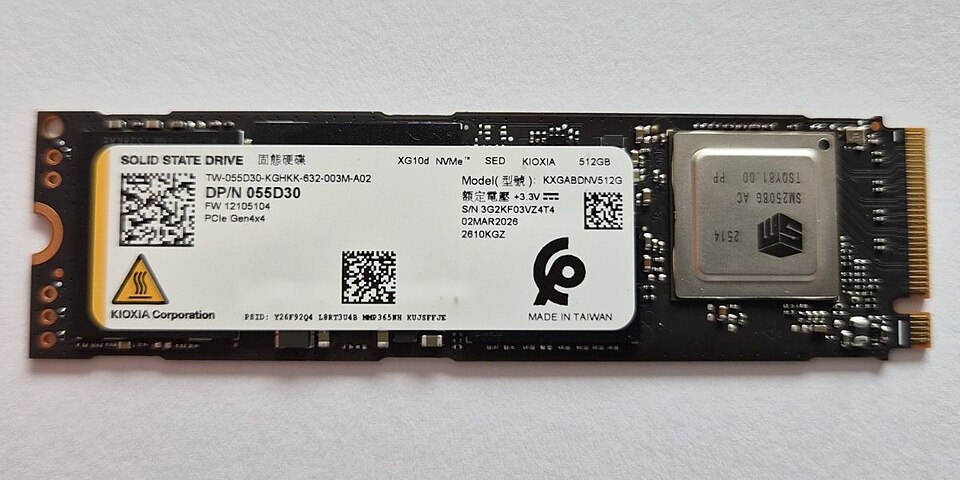
M.2 SSDSmall SSD mounted directly on the motherboard, with no cable.The size is read in digits: 2280 = 22 mm wide, 80 mm long.M.2 is a form factor. The SSD can be NVMe (fast) or SATA.Photo: User5515, CC0 Maximum read speedM.2 SATA2013About 550 MB/sNVMe PCIe 3.0About 3500 MB/sNVMe PCIe 4.0About 7000 MB/sNVMe PCIe 5.0About 14,000 MB/sSizes and keys223030 mm, mini PCs and consoles224242 mm228080 mm, the most common22110110 mm, mainly serversM keyNVMe, 4 PCIe lanesB keySATA or 2 PCIe lanesE keyWi-Fi cards
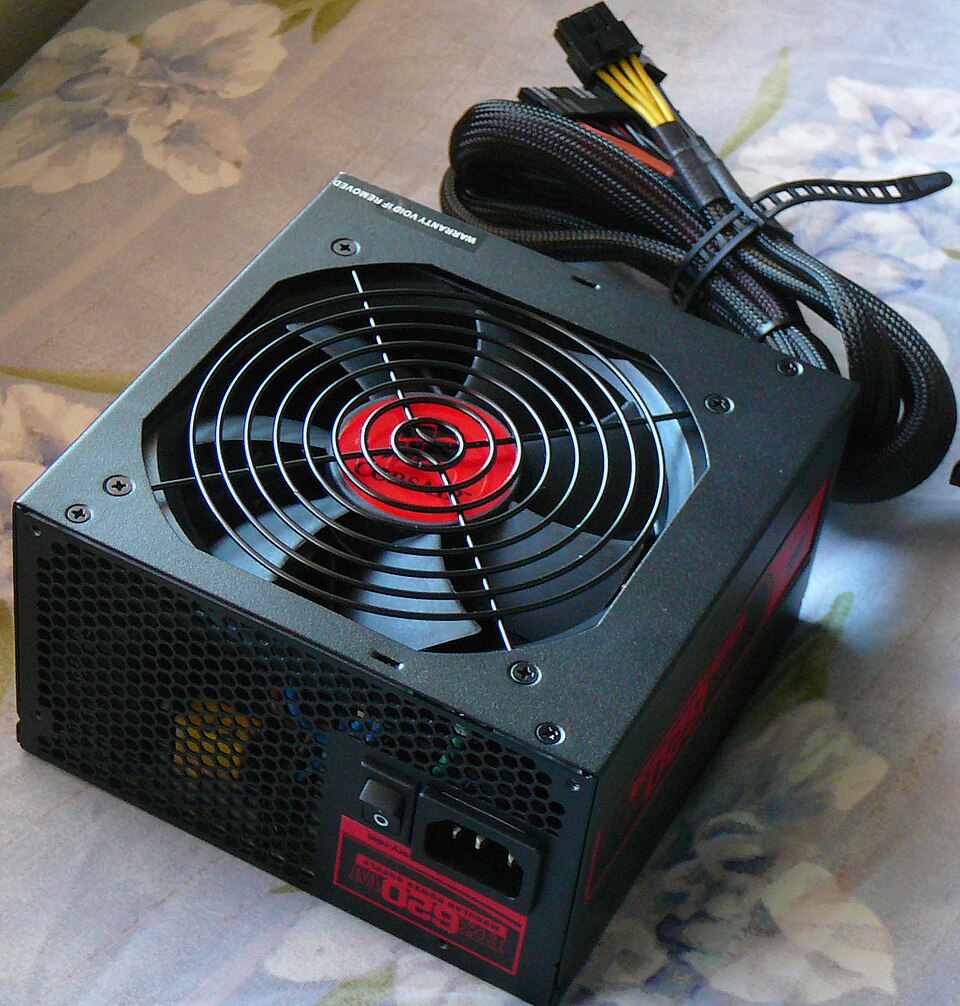
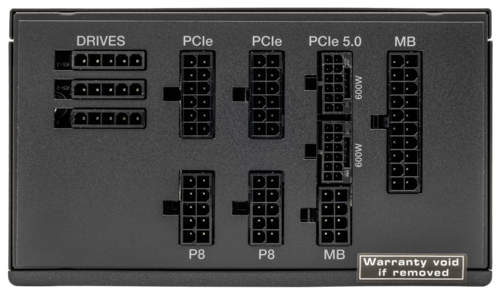
Power supply (PSU)It turns the mains current into direct voltages: 12 V, 5 V and 3.3 V.Open the “Power supply” tab to see the name of each connector.Common formats: ATX (desktop PCs), SFX (small PCs), TFX (slim PCs).80 PLUS shows the efficiency: Bronze, Silver, Gold, Platinum, Titanium.Photo: Reubentg, public domain Never open a power supply: it can hold a dangerous voltage, even when unplugged.Photo: PantheraLeo1359531, CC BY 4.0Non-modularAll the cables are fixed.Semi-modularThe essential cables are fixed, the others unplug.ModularAll the cables unplug. Never mix the cables of two models.
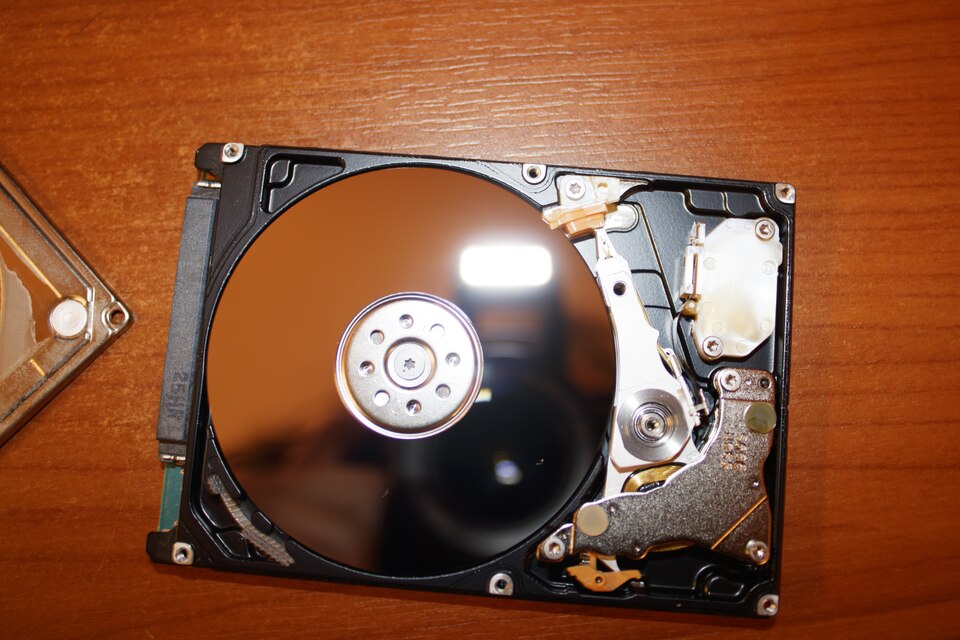
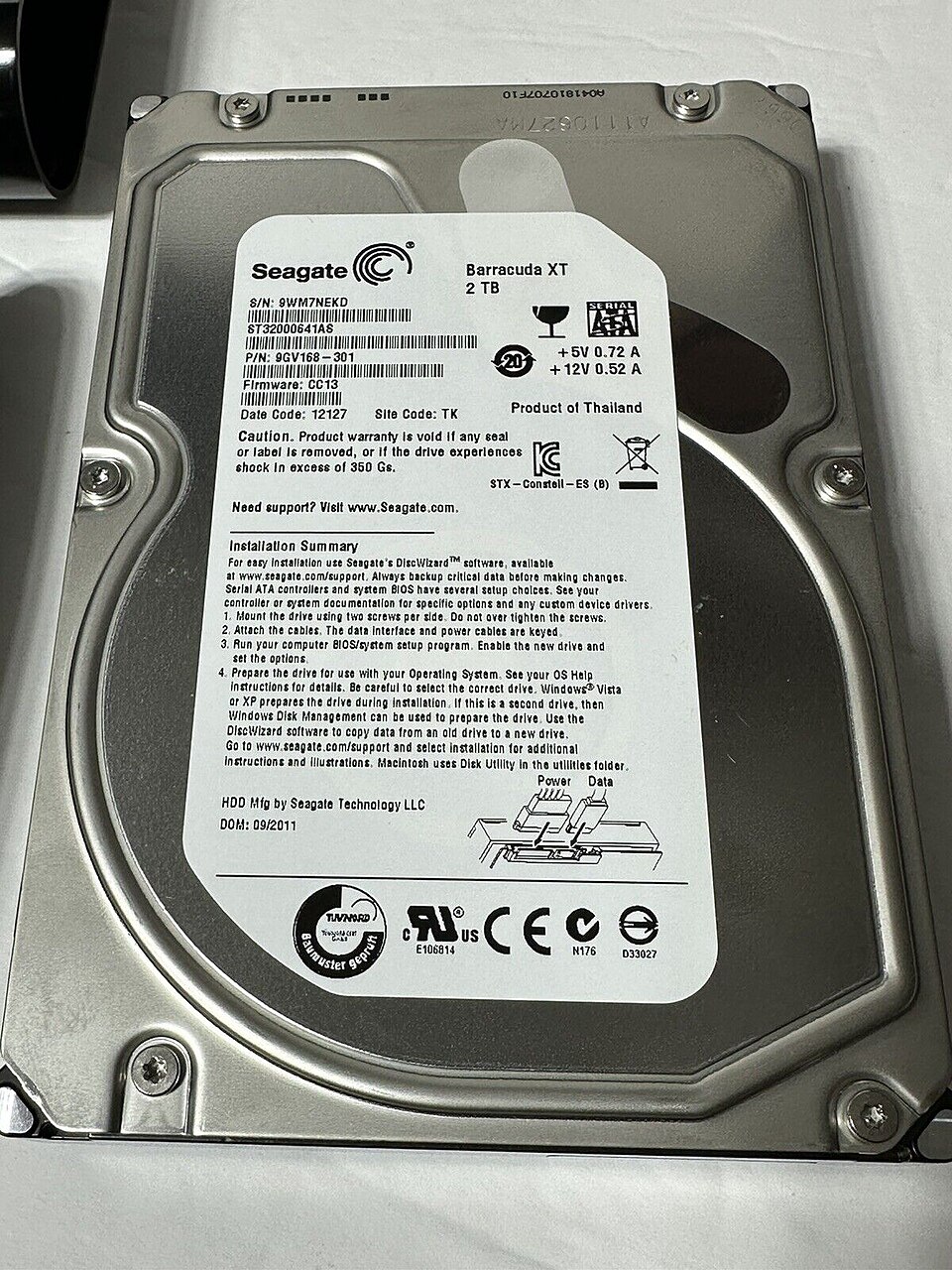
Hard drive (HDD)Storage on spinning platters. Slow and sensitive to shocks, but cheap.3.5 inch for desktop PCs, 2.5 inch for laptops.5400 or 7200 revolutions per minute.Photo: User5515, CC0 Photo: greekwikipedian, public domainIDE (PATA)1986Wide 40-pin ribbon cable, with master and slave jumpers.SATA2003Small 7-pin cable, one drive per cable.SAS2004Server drives.
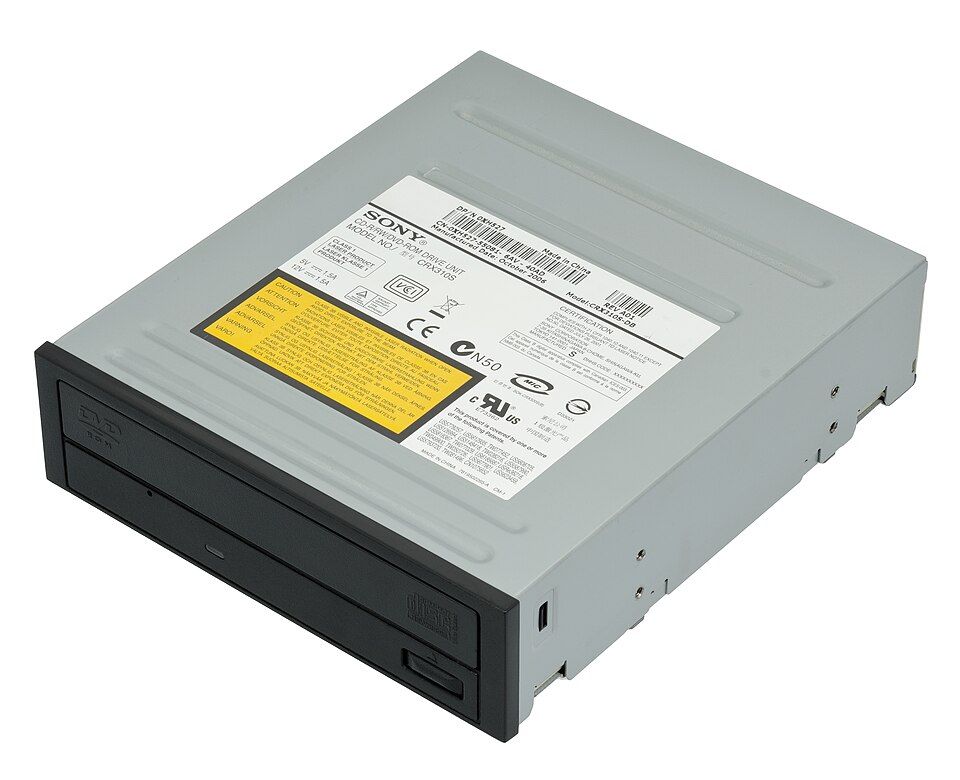
Optical driveIt reads and burns discs. Rare on recent PCs.It connects with SATA, or IDE on older PCs.Photo: Evan-Amos, public domain CD1982700 MBDVD19964.7 GB, 8.5 GB dual layerBlu-ray200625 GB, 50 GB dual layer
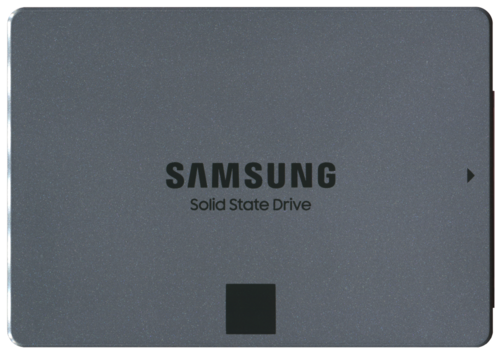
SSD SATA 2.5 inchStorage on flash memory, with no moving parts. It replaces a hard drive in an older PC.About 550 MB/s, the limit of SATA III.Two cables: SATA data and SATA power.Photo: PantheraLeo1359531, CC BY 4.0 SATA standardsSATA I20031.5 Gbit/s, 150 MB/sSATA II20043 Gbit/s, 300 MB/sSATA III20096 Gbit/s, 600 MB/s
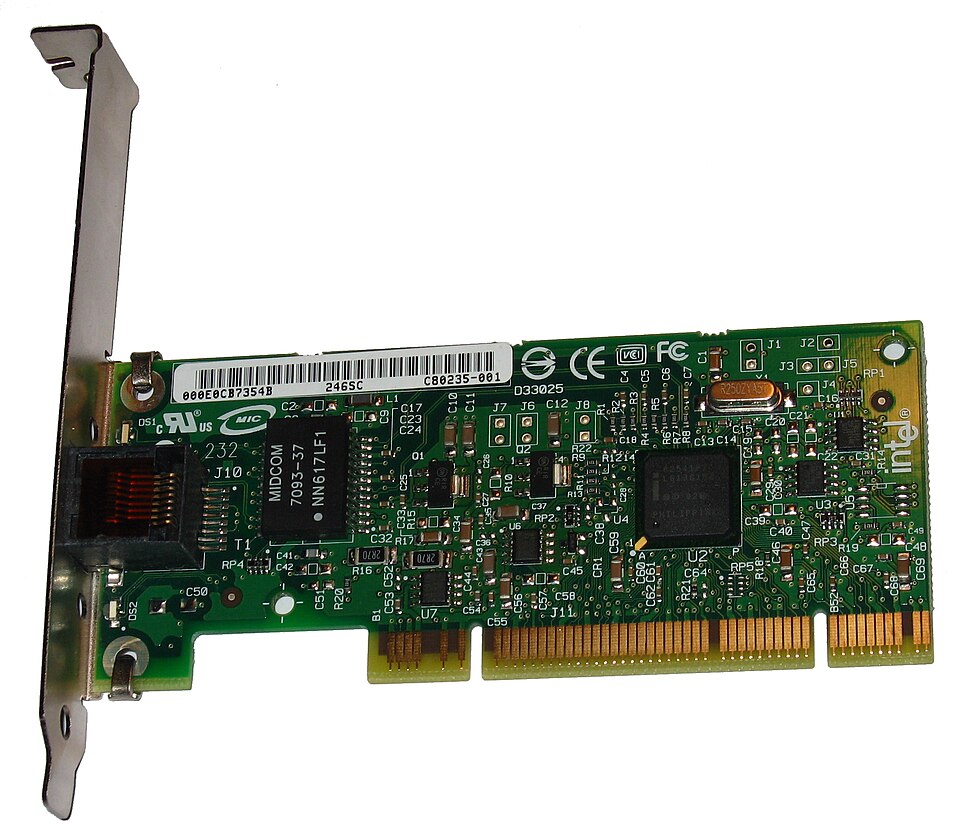
Network cardIt connects the PC to the network, by cable or Wi-Fi.It is often built into the motherboard.Each card has a unique MAC address.Photo: ktims, public domain Wi-Fi generationsWi-Fi 42009802.11n, 2.4 and 5 GHzWi-Fi 52013802.11ac, 5 GHzWi-Fi 62019802.11axWi-Fi 6E2020Adds the 6 GHz bandWi-Fi 72024802.11be
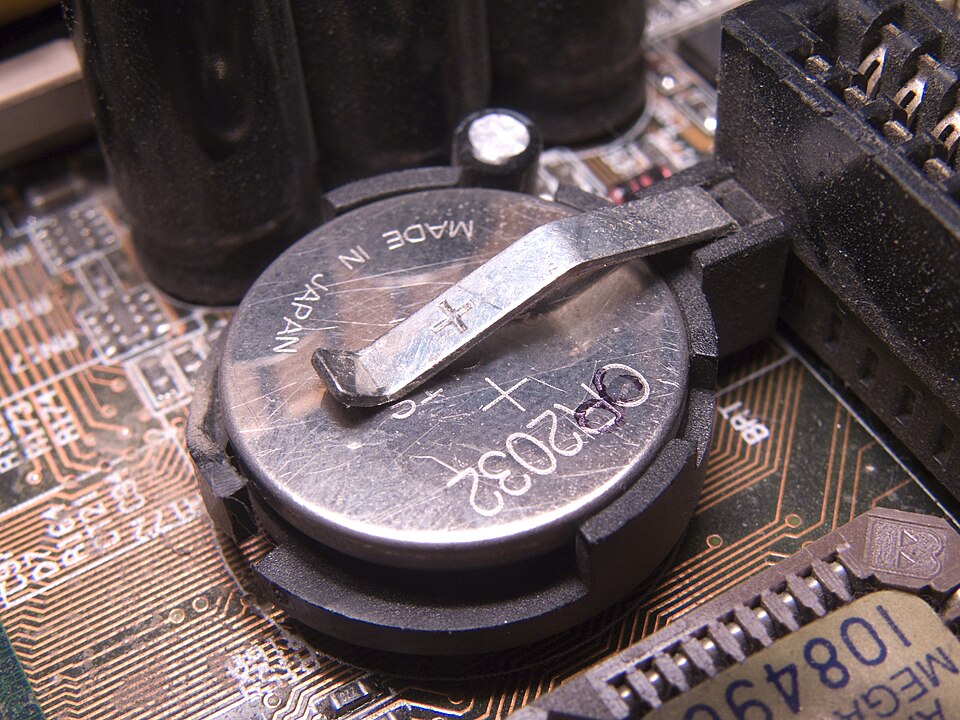
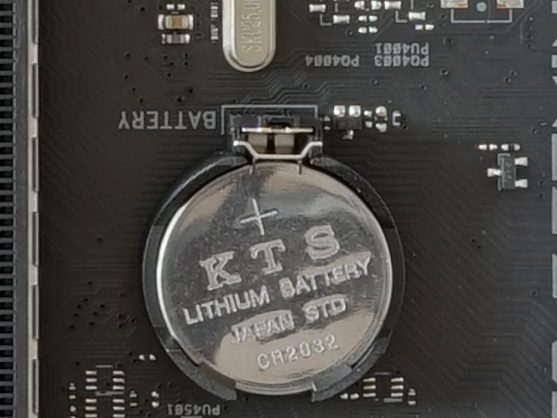
CMOS batterySmall 3 V CR2032 battery. It keeps the time and some BIOS settings when the PC is unplugged.If the clock goes back at every start-up, the battery is probably flat.Photo: Lukas A, CZE, public domain
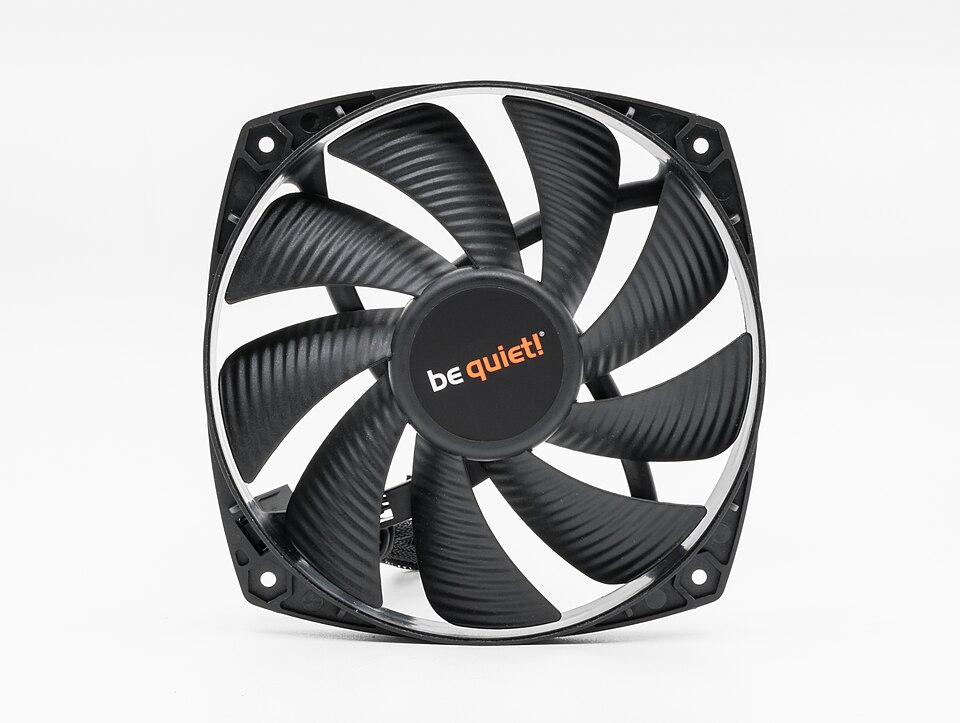
Case fanIt moves air through the case.Common sizes: 120 and 140 mm.The arrow on the side shows the airflow direction.Photo: Jacek Halicki, CC BY-SA 4.0 1GND212 V3Speed4PWM4-pin fan header. A 3-pin fan has no PWM.
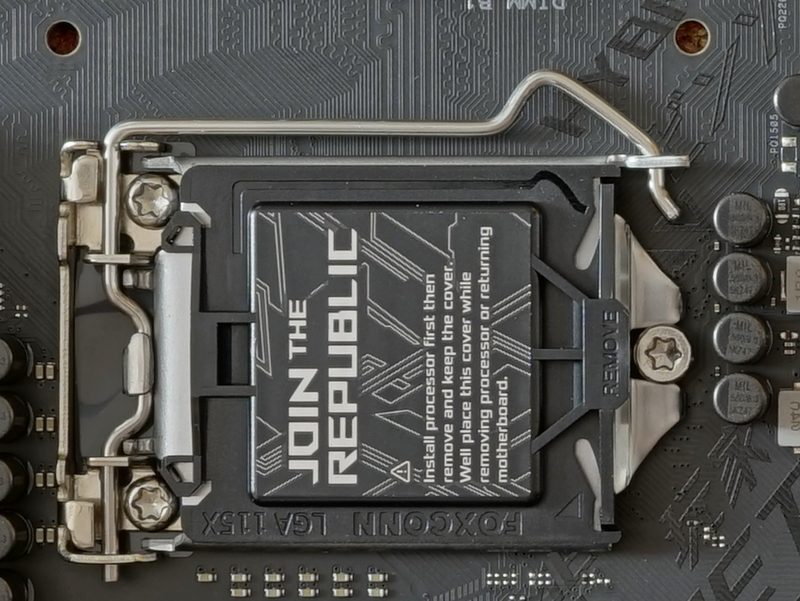
SocketProcessor slot. The processor and the motherboard must have the same one.Intel: LGA 1200, LGA 1700, LGA 1851.AMD: AM4, AM5.Photo: PantheraLeo1359531, CC BY 4.0, cropped See all processors and their socket
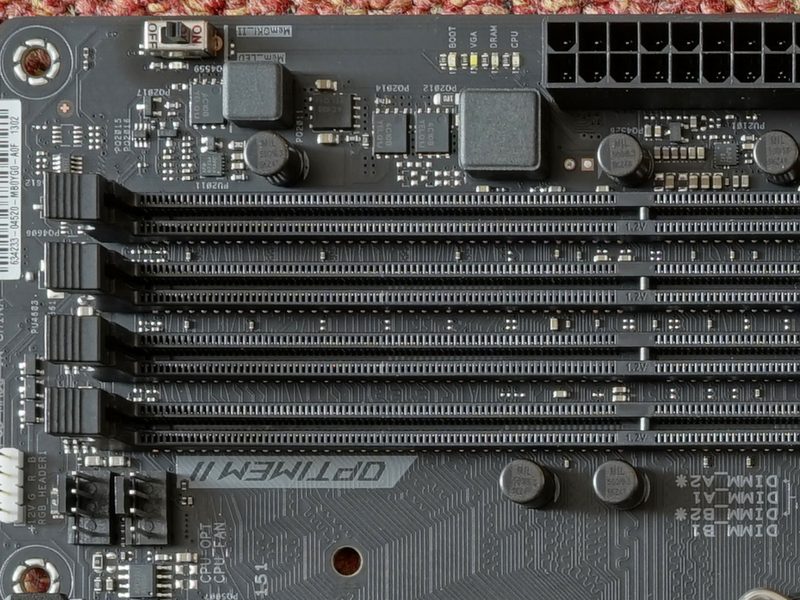
RAM slotsThey hold the memory modules.With two modules, usually use slots 2 and 4 (A2 and B2) for dual channel.The notch prevents using the wrong generation.Photo: PantheraLeo1359531, CC BY 4.0, cropped See all RAM generations
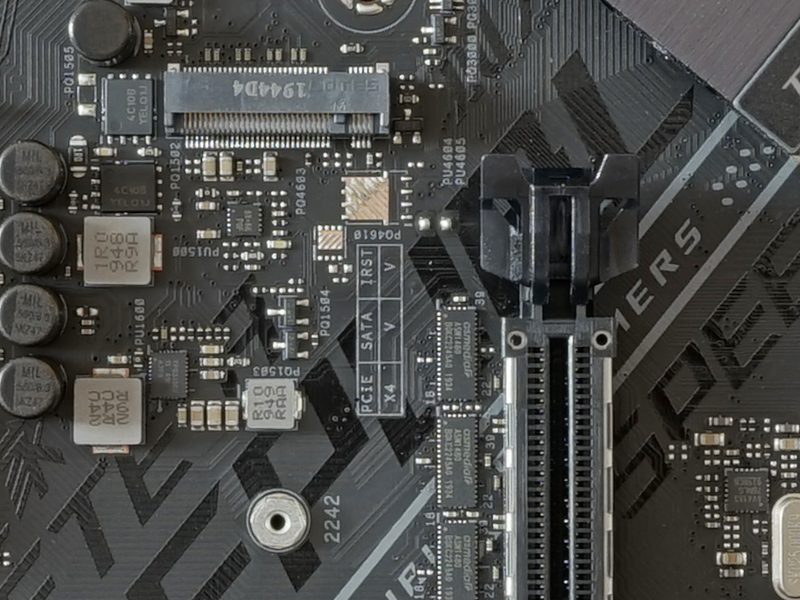
Slot M.2Slot for an M.2 SSD or a Wi-Fi card.Check whether the slot accepts NVMe, SATA or both.Photo: PantheraLeo1359531, CC BY 4.0, cropped See M.2 SSDs
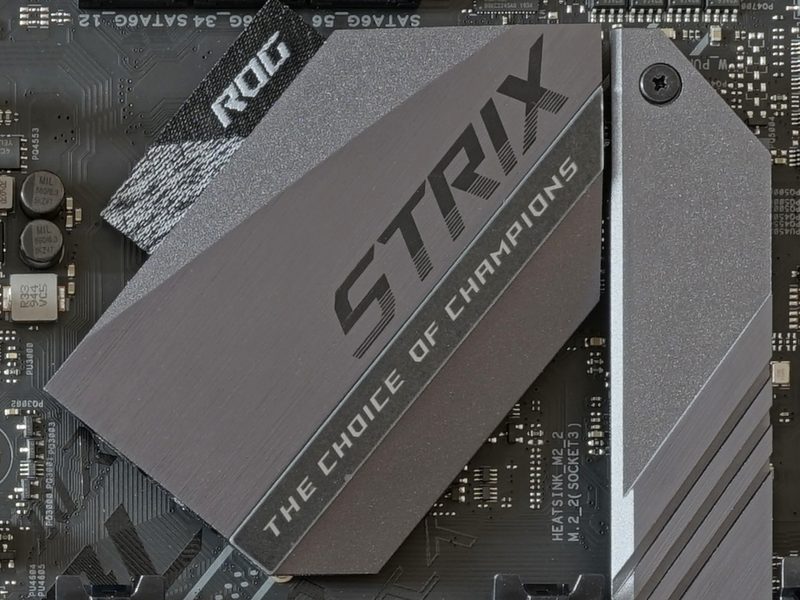
ChipsetChip that manages some of the ports: USB, SATA and PCIe lanes.Intel examples: B760, Z790, Z890.AMD examples: B550, X570, B650, X870.In the photo, it is hidden under this heatsink.Photo: PantheraLeo1359531, CC BY 4.0, cropped
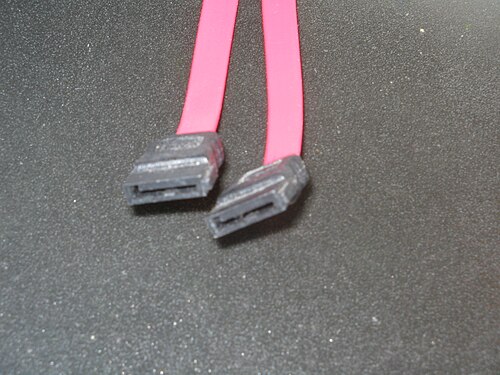
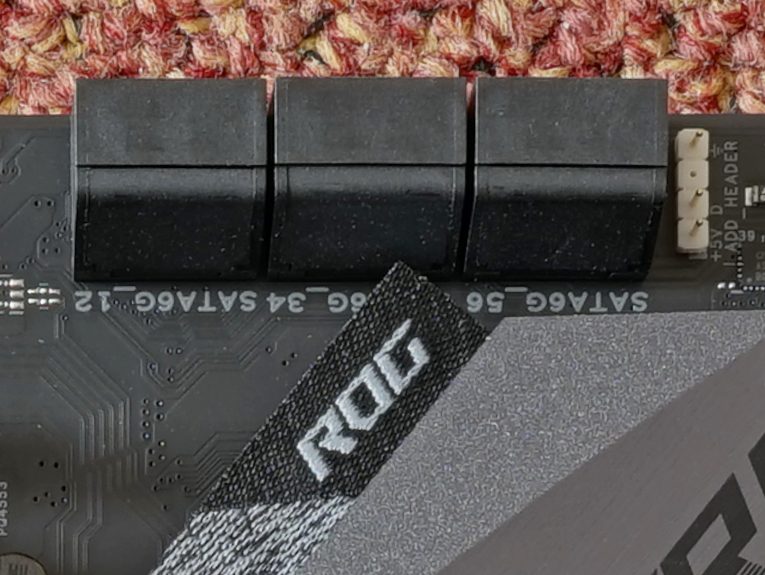
SATA portsThey connect hard drives, SATA SSDs and optical drives.7-pin data cable, with an L shape.Photo: PantheraLeo1359531, CC BY 4.0, cropped Photo: greekwikipedian, public domain
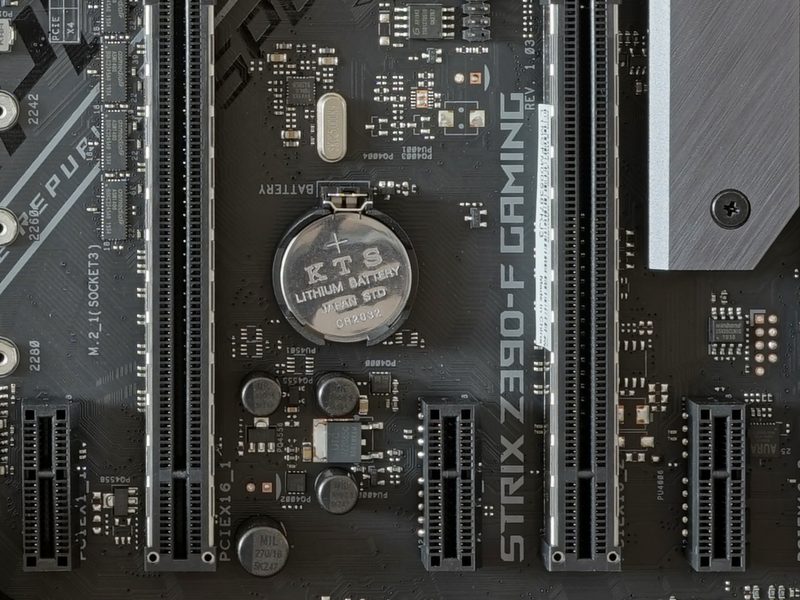
PCI Express slotsThey hold expansion cards.x16: graphics card.x1: sound, network or USB card.x4: SSD or fast card.Photo: PantheraLeo1359531, CC BY 4.0, cropped A small card works in a longer slot.
CMOS batterySlot for the 3 V CR2032 battery.Removing it for a few minutes, with the PC unplugged, often resets the BIOS. Follow the board's manual.Photo: PantheraLeo1359531, CC BY 4.0, cropped
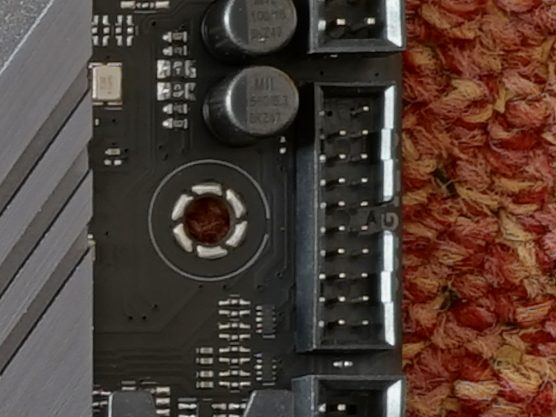
Internal USBThey connect the USB ports on the front of the case.USB 2.0: 9 pins.USB 3: 19 pins, wide connector.USB-C: Key-A connector.Photo: PantheraLeo1359531, CC BY 4.0, cropped
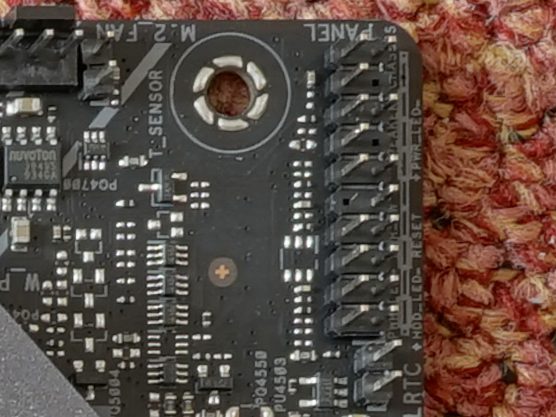
Front panel connector (F_PANEL)It connects the power button, the reset button and the case LEDs.The buttons have no polarity. The LEDs have a + and a −.On this board, it is marked PANEL and groups more pins.Photo: PantheraLeo1359531, CC BY 4.0, cropped 2LED +4LED −6Power8Power1HDD +3HDD −5Reset7Reset9EmptyFront panel connector, common layout. Pin 10 is missing. Check the board's manual.
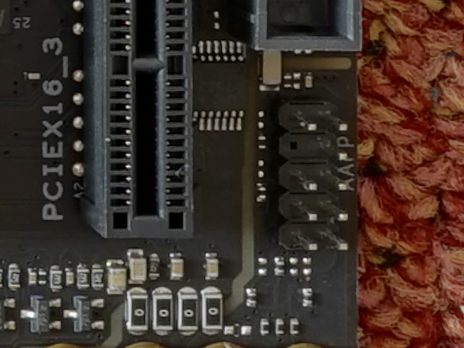
Front audio (HD_AUDIO)It connects the front headphone and microphone jacks. 9-pin connector.Also marked AAFP on some boards.Photo: PantheraLeo1359531, CC BY 4.0, cropped
Fan headersCPU_FAN for the processor, SYS_FAN or CHA_FAN for the case.3 pins: voltage control. 4 pins: PWM control.Photo: PantheraLeo1359531, CC BY 4.0, cropped 1GND212 V3Speed4PWM4-pin fan header. A 3-pin fan has no PWM.
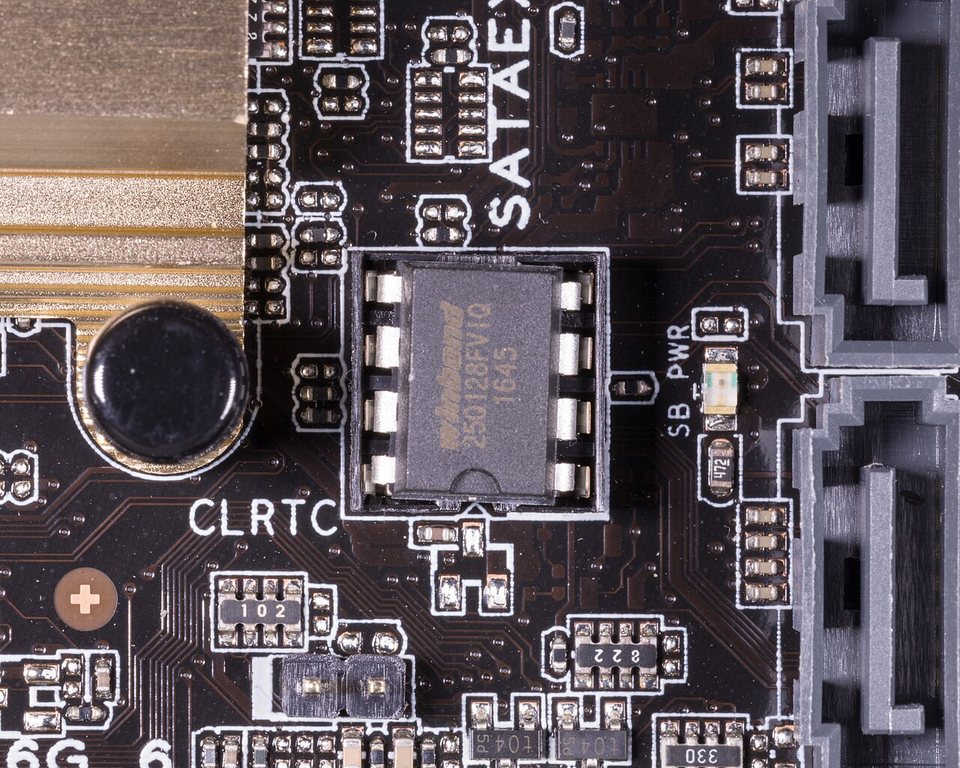
BIOS/UEFI chipFlash memory that holds the motherboard firmware.It checks the hardware, then starts the system.Never cut the power during its update.Photo: Tobias "ToMar" Maier, CC BY-SA 3.0 See the whole BIOS section
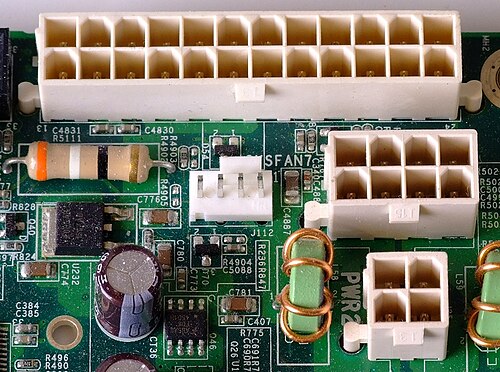
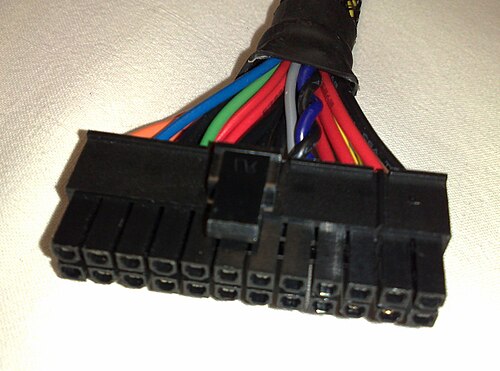
ATX 24 pinsThe biggest connector. It powers the motherboard.Older 20-pin version, often sold as 20+4.Photo: Dsimic, CC BY-SA 3.0 ATX 24, front view: 20 + 413,323,33GND455GND657GND8OK9SB10121112123,3133,314-1215GND16PS17GND18GND19GND20—21522523524GNDATX 24 pinsWire coloursYellow +12 V: processor, graphics card, motorsRed +5 V: USB, drivesOrange +3.3 V: chips, M.2Black Ground (GND), the current returnPurple +5 V standby, present when the PC is offGreen PS_ON, asks to power onGrey PWR_OK, stable voltagesBlue −12 V, hardly used any moreEmpty Old −5 V, pin 20 not connectedOn many recent power supplies, all the wires are black: rely on the pin number.Photo: Tobias Maier, CC0
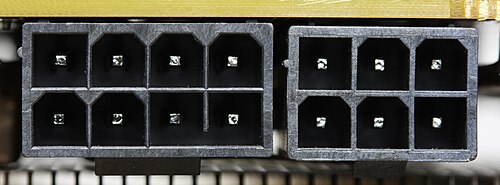
EPS 4+4 pins (CPU)It powers the processor. It is marked CPU or P8.Basic PCs use 4 pins, others 8, sometimes two times 8.Photo: Tobias Maier, CC0 EPS, front view: 4 + 41GND2GND3GND4GND512612712812EPS 4+4 pinsDo not confuse it with the 8-pin PCIe: + and ground are swapped. Never force it.
PCIe 6+2 pinsIt powers the graphics card.6 pins: 75 W. 8 pins: 150 W.Preferably use a separate cable for each socket.Photo: D-Kuru, CC BY-SA 3.0 at PCIe, front view: 6 + 21122123124GND5S6GNDPCIe 6 pins, 75 W1122123124S5GND6S7GND8GNDPCIe 8 pins (6+2), 150 WS: sense pin, connected to ground.
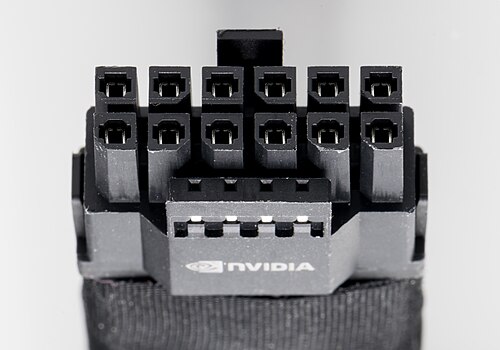
12VHPWR and 12V-2x616-pin connector for powerful graphics cards.12VHPWR in 2022, replaced by 12V-2x6 in 2023.Push it all the way in and avoid bending the cable near the socket.Photo: Jacek Halicki, CC BY-SA 4.0 12V-2x6, front view: 12 + 4 small pins1122123124125126127GND8GND9GND10GND11GND12GNDS1SS2SS3SS4S12V-2x6, up to 600 WS: four small sense pins.
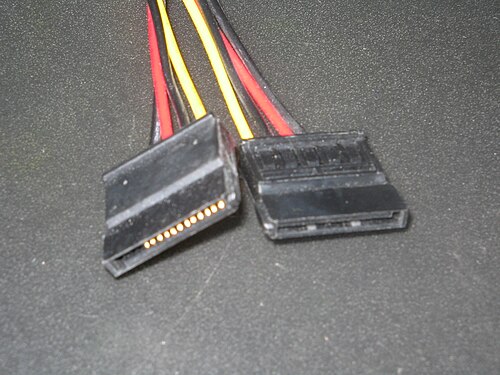
SATA powerIt powers SATA SSDs, hard drives and optical drives.15 pins, L shape, wider than the data cable.Photo: greekwikipedian, public domain SATA power, front view13,323,333,34GND5GND6GND75859510GND11GND12GND131214121512SATA power, 15 pins
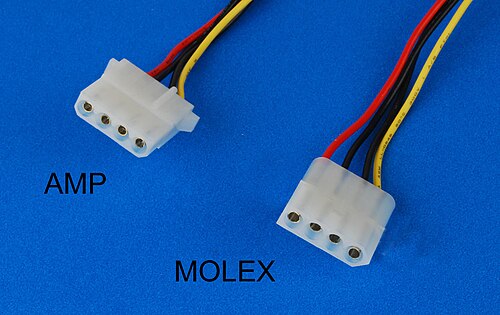
4-pin MolexOld connector: IDE drives, fans and accessories.One yellow wire, two black, one red.Photo: Michael Holley, public domain Molex, front view1122GND3GND454-pin Molex
4-pin BergSmall connector of old floppy drives.The voltages are in the reverse order of the Molex.Berg, front view 152GND3GND4124-pin Berg
PS/2Old round 6-pin port, released in 1987.Purple: keyboard. Green: mouse.Turn the PC off before plugging or unplugging.Top: keyboard (purple), bottom: mouse (green)
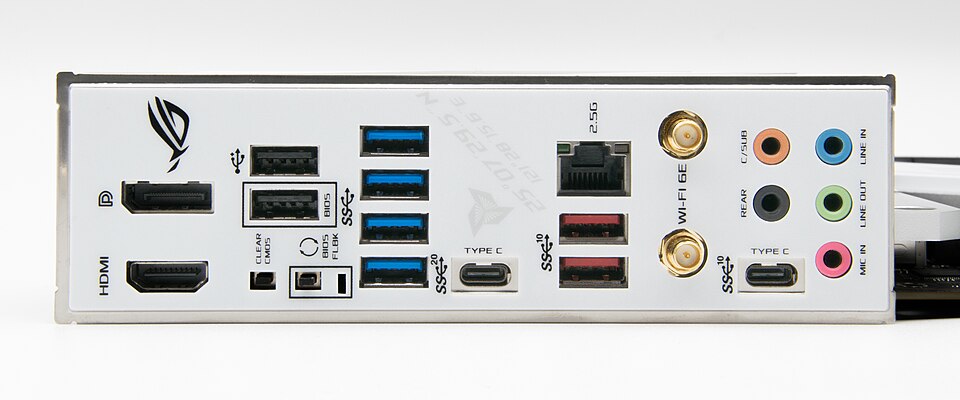
USB-AThe best-known rectangular port: keyboard, mouse, USB drive.Colour helps but is not a rule: often black or white for USB 2.0, blue for USB 3.Photo: Jacek Halicki, CC BY-SA 4.0 Top: USB 2.0, bottom: USB 3 (blue)USB 1.1199812 Mbit/sUSB 2.02000480 Mbit/sUSB 3.020085 Gbit/sUSB 3.1201310 Gbit/sUSB 3.22017Up to 20 Gbit/sUSB42019Up to 40 Gbit/sUSB4 v22022Up to 80 Gbit/s
USB-CSmall reversible port, released in 2014. It can carry data, video and charging.The shape does not tell the speed: read the PC's specifications.Reversible port, 24 contacts USB 3.2Up to 20 Gbit/sUSB4Up to 40 or 80 Gbit/sThunderbolt 3201540 Gbit/sThunderbolt 4202040 Gbit/sThunderbolt 5202380 Gbit/s
HDMIVideo and sound to a monitor or a TV.19 contacts, narrower bottom HDMI 1.02002Full HDHDMI 1.420094K at 30 frames/sHDMI 2.020134K at 60 frames/sHDMI 2.120174K at 120 frames/sHDMI 2.22025Up to 96 Gbit/s
DisplayPortVideo and sound, widely used for PC monitors.It has one cut corner and often a latch.20 contacts, one cut corner DP 1.220104K at 60 frames/sDP 1.420164K at 120 frames/sDP 2.02019Up to 80 Gbit/sDP 2.12022Up to 80 Gbit/s, better-defined cables
DVIOld digital video port, released in 1999. No sound in normal use.DVI-D: digital. DVI-A: analogue. DVI-I: both.DVI-I: 24 pins and the analogue part on the right
VGAOld 15-pin analogue video port, released in 1987.Often blue, with two screws.15 holes in three rows, two screws
RJ45 (Ethernet)Socket for the network cable, 8 contacts.A steady or blinking light shows that the link is active.8 contacts and two lights Cable categoriesCat 5e1 Gbit/sCat 61 Gbit/s, 10 Gbit/s over short distancesCat 6a10 Gbit/s over 100 mCat 825 or 40 Gbit/s over 30 m
Wi-Fi antennasTwo screw-on sockets for the Wi-Fi and Bluetooth antennas.Without the antennas, the signal is very weak.Screw-on sockets
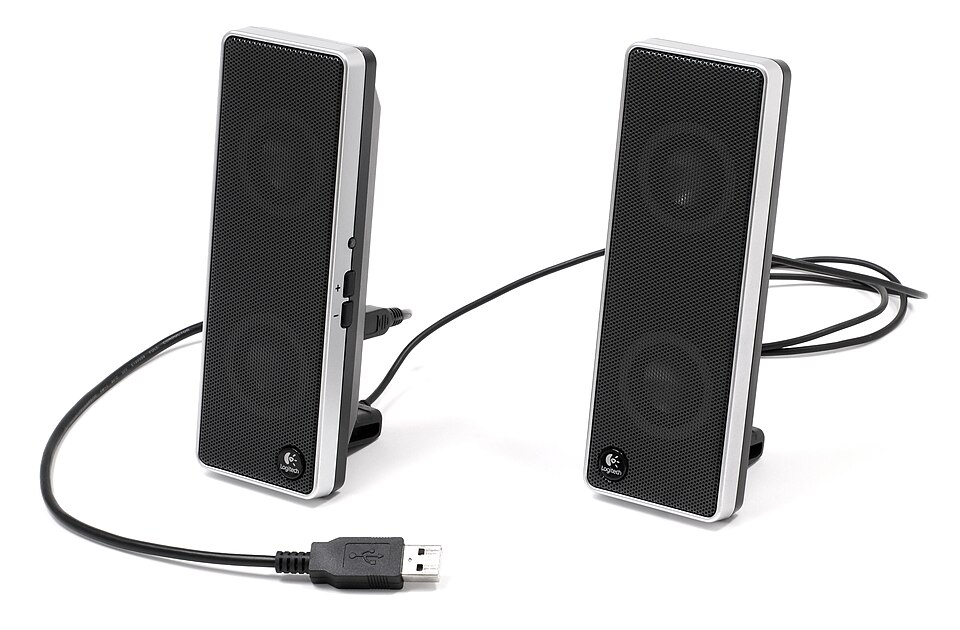
Audio jacks (3.5 mm)They connect headphones, speakers and a microphone.Green: headphone or speaker output.Pink: microphone.Blue: audio input.InputOutputMicBlue input, green output, pink mic
Optical S/PDIFDigital audio output through optical fibre, to an amplifier or a home cinema.Optical fibre, red light
MonitorOutput device. It displays the image.Resolution: number of pixels.Hz: frames per second.Response time: in milliseconds.Photo: Luke Chesser lukechesser, CC0, cropped Panel typesTNFast, limited colours and anglesIPSGood colours, good anglesVAGood contrastOLEDDeep blacks, each pixel lights upResolutionsFull HD1920 × 1080QHD2560 × 14404K UHD3840 × 2160
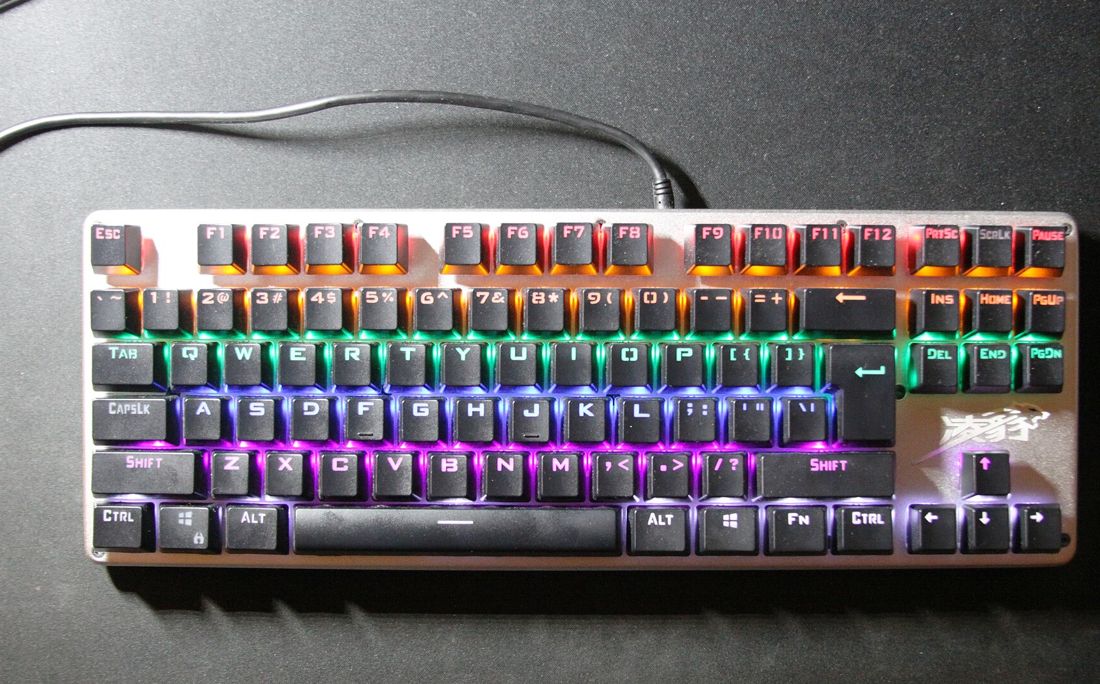
KeyboardInput device. It is used to type and give commands.AZERTY in France and Morocco, QWERTY in many other countries.Photo: Morn, CC BY-SA 4.0, cropped MembraneQuiet and cheapMechanicalOne switch per key, durableScissorFlat, for laptops
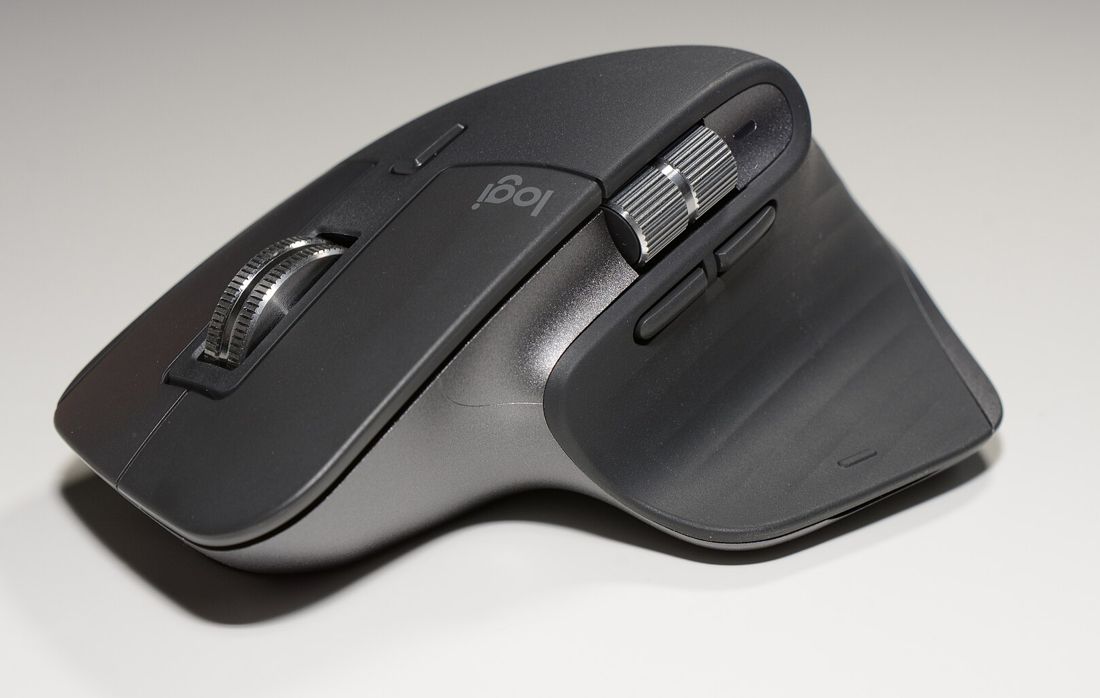
MouseInput device. It moves the pointer.DPI: sensor sensitivity.Photo: Hayden Schiff, CC BY 4.0, cropped BallOld, gets dirtyOpticalLED and sensorLaserWorks on more surfaces
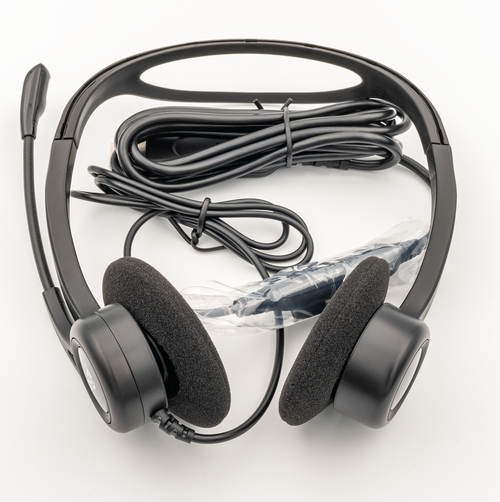
HeadsetOutput for sound, input for the voice.It connects with a jack, USB or Bluetooth.Photo: PantheraLeo1359531, CC BY 4.0
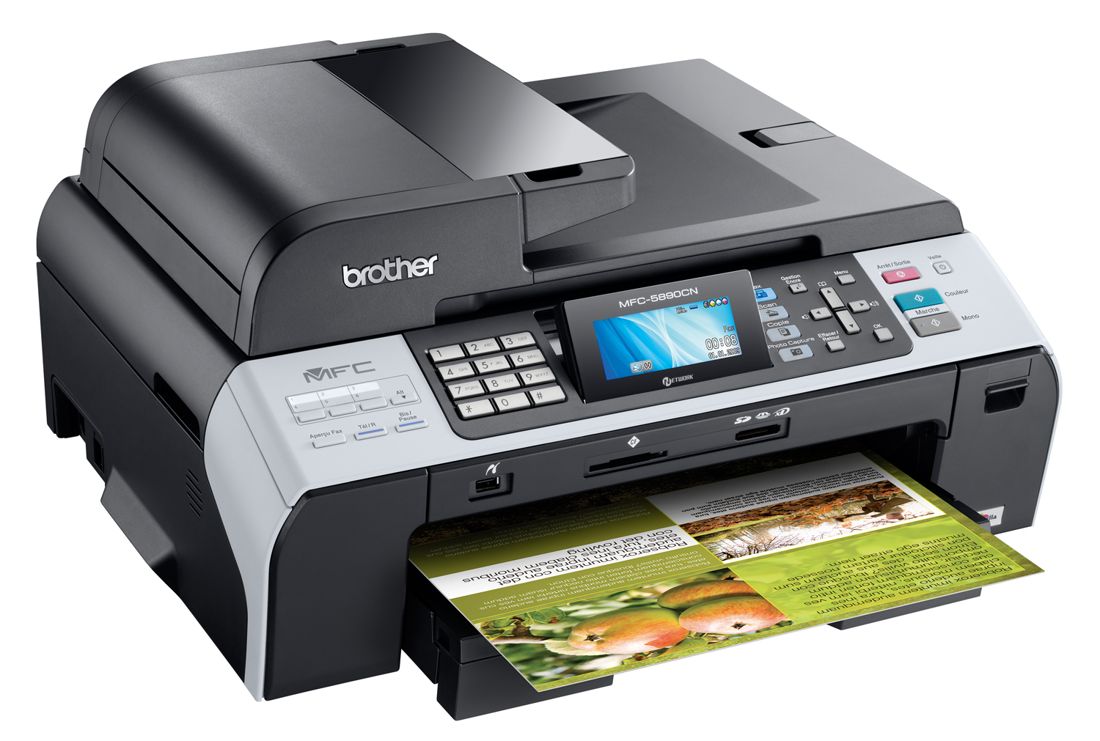
PrinterOutput device. It prints on paper.Photo: Brother France, CC BY-SA 3.0, cropped InkjetLiquid ink, good for photosLaserPowder toner, fast for textDot matrixPins and ribbon, for carbon copiesThermalTill receipts, no ink
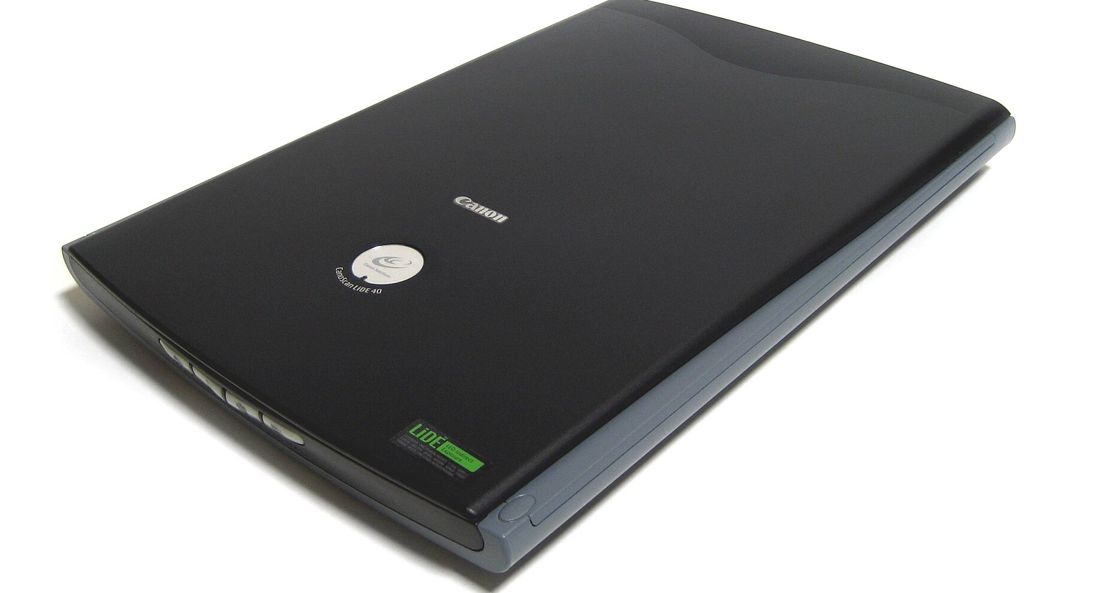
ScannerInput device. It turns a paper document into an image.Resolution is measured in dpi.Photo: Qurren, CC BY-SA 3.0, cropped
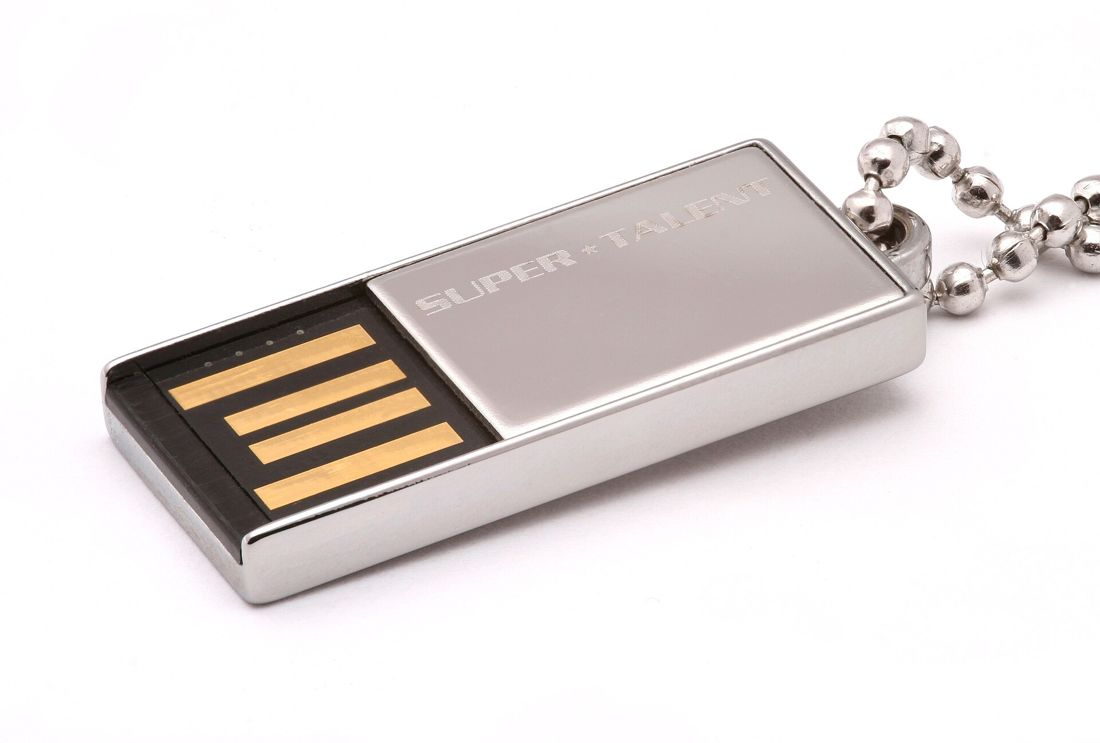
USB driveSmall portable flash memory. It is both input and output.Remove it with the eject option.Photo: Afrank99, CC BY-SA 3.0, cropped
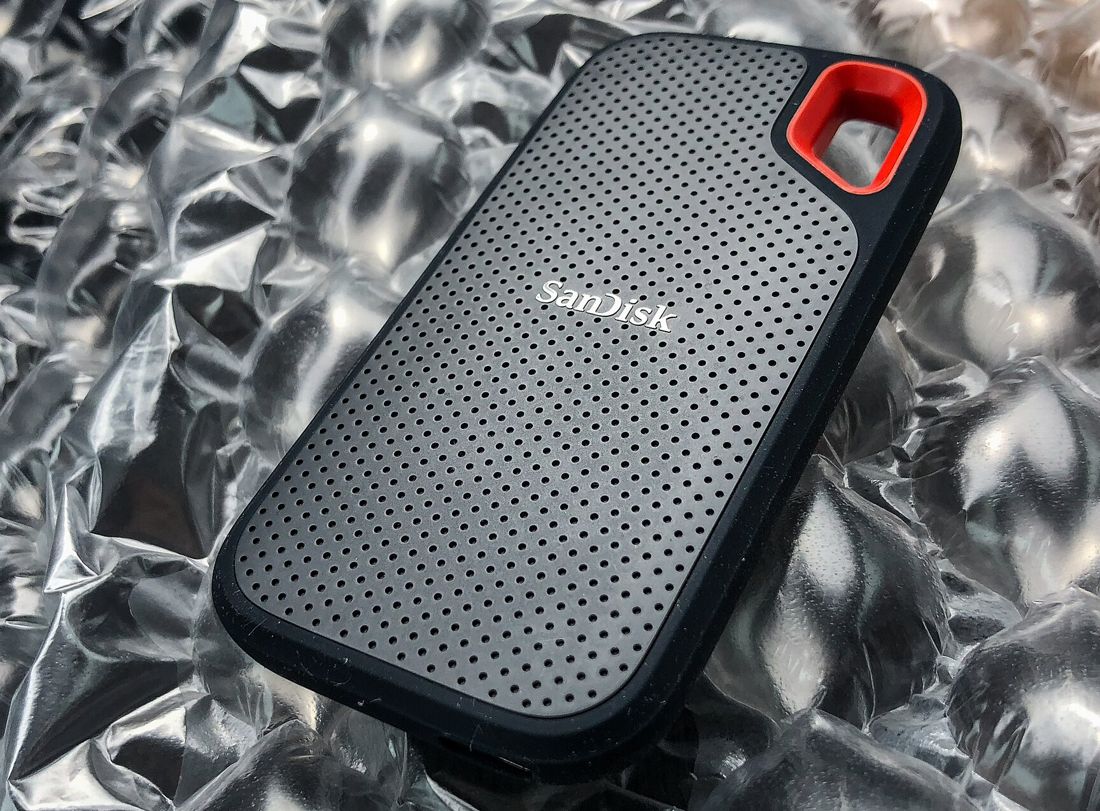
External driveA hard drive or SSD in a USB enclosure. Ideal for backups.Photo: Tony Webster from Minneapolis, Minnesota, United States, CC BY 2.0, cropped
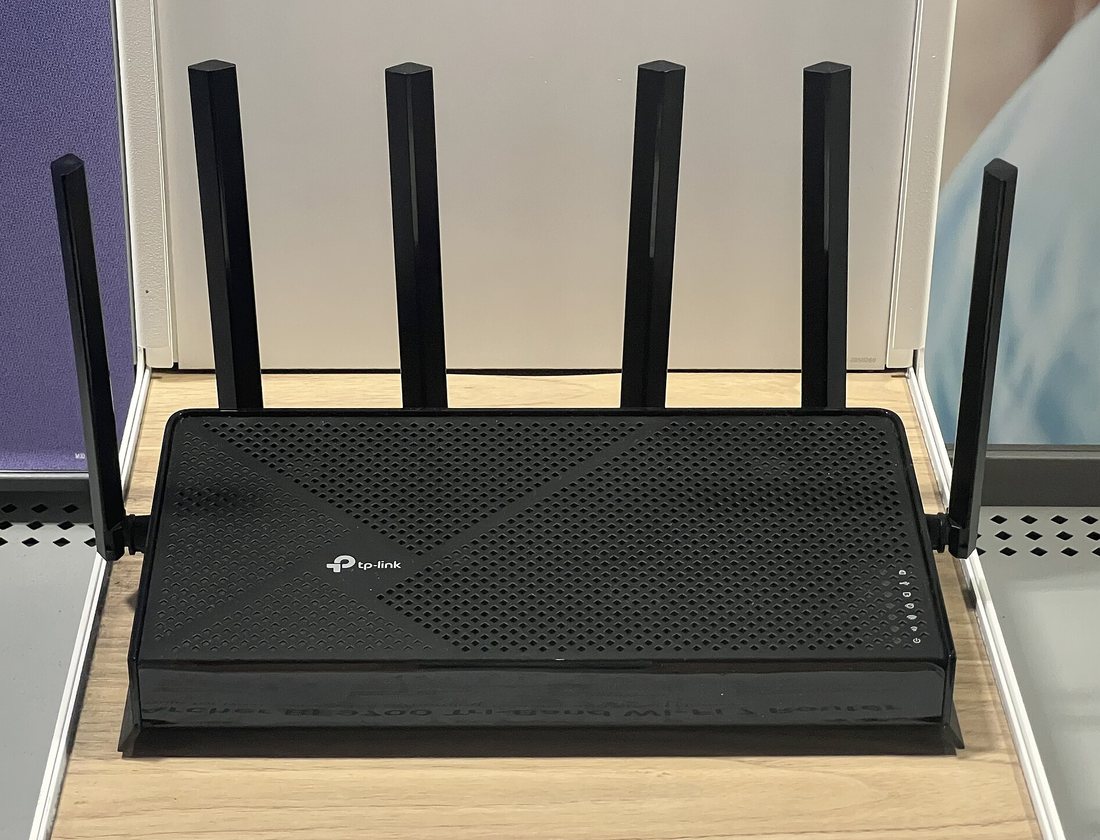
RouterIt connects the home network to the Internet and hands out IP addresses.The box installed by the Internet provider usually contains a router.Photo: TaurusEmerald, CC BY-SA 4.0, cropped
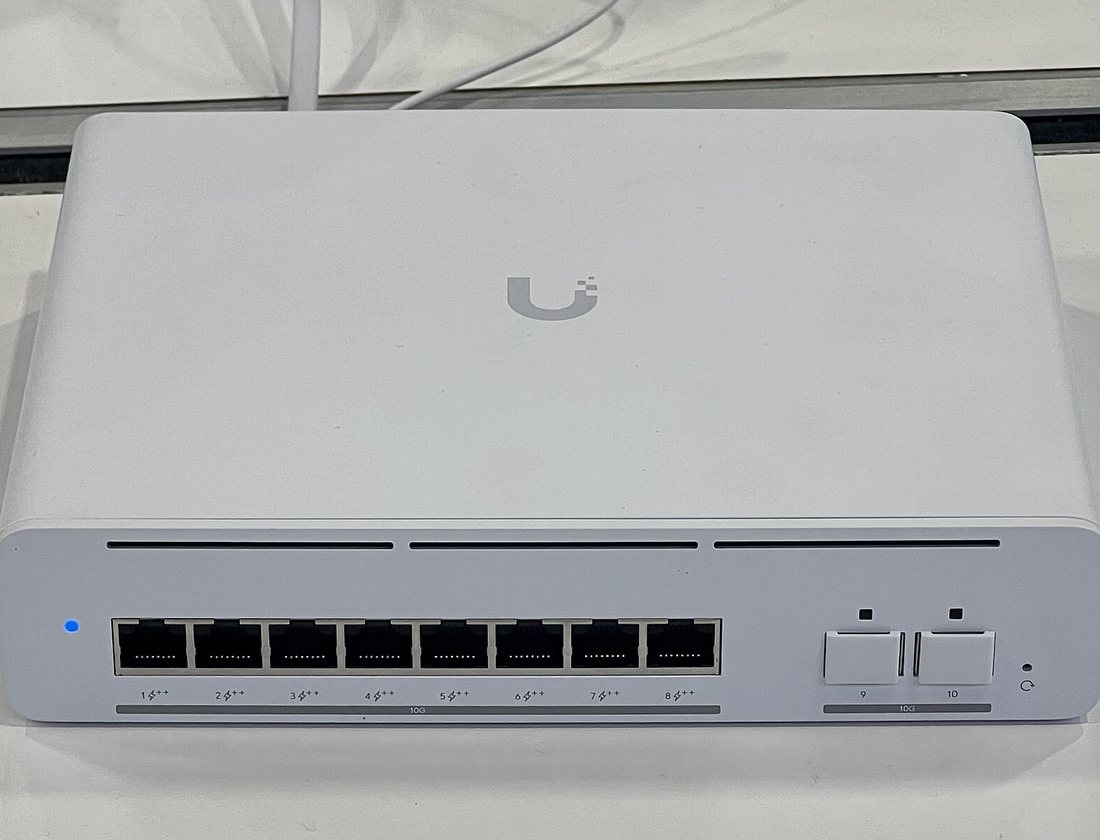
SwitchIt connects several devices by cable in the same network.Photo: TaurusEmerald, CC BY-SA 4.0, cropped
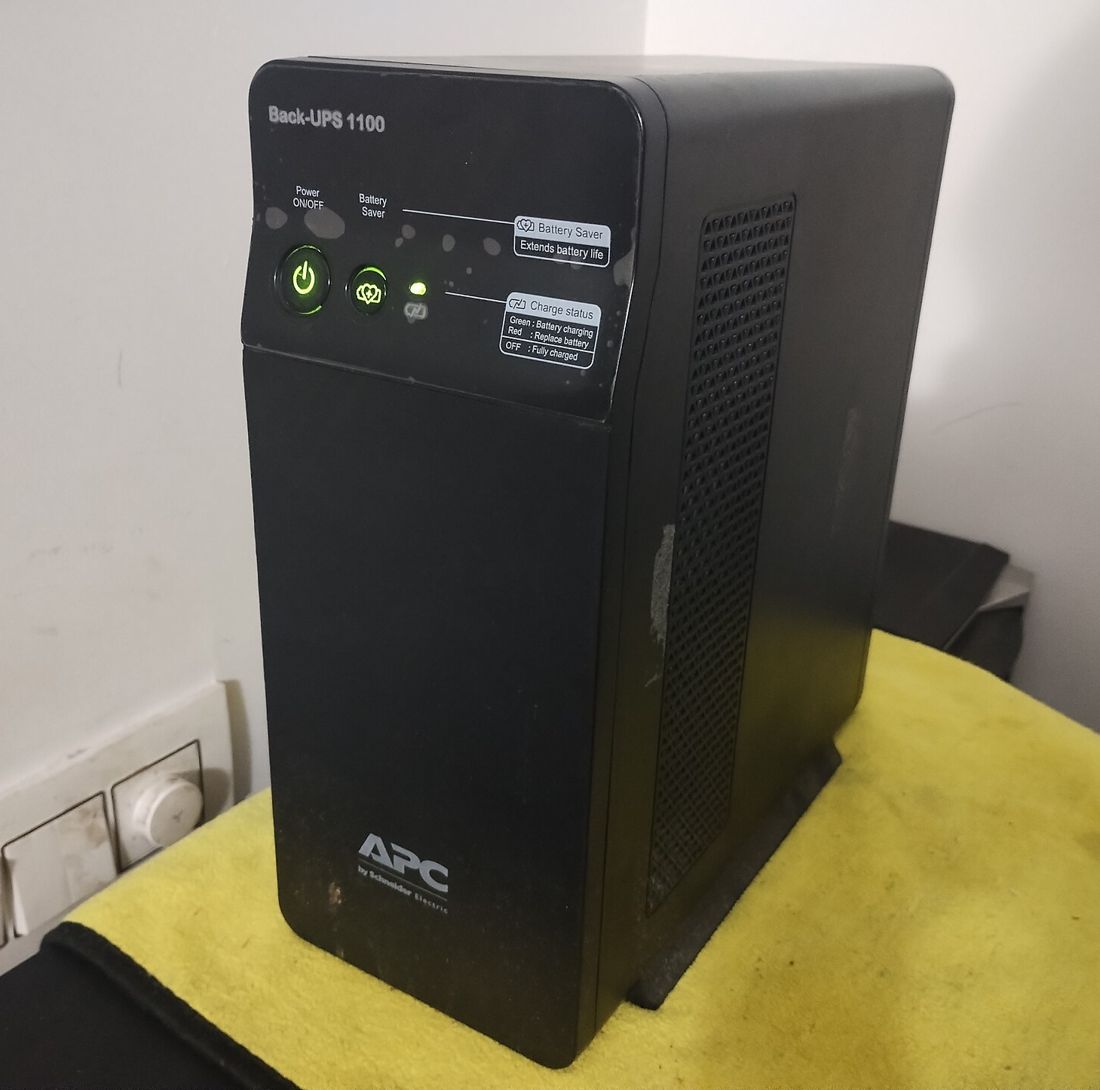
UPSIt contains a battery and keeps the PC on for a few minutes during a power cut.It gives you time to save and shut down.Photo: Gpkp, CC BY-SA 4.0, cropped
BIOSBasic Input/Output System: a small program stored in a chip on the motherboard.It is the first program that runs when you turn on the PC.It is firmware: it stays in memory even without power.On recent PCs, it is called UEFI. People still say “the BIOS” out of habit.Photo: Tobias "ToMar" Maier, CC BY-SA 3.0 BIOS1981Arrives with the IBM PCEFIaround 2000Created by IntelUEFI2005Common standard for all brands
What the BIOS is forWake up the hardware, check it, then start the operating system. CheckProcessor, RAM, graphics card, keyboardConfigureDate, fans, drives, securityChooseThe drive or USB stick that bootsStartWindows, Linux or the installerWithout a BIOS, the PC turns on but cannot do anything.
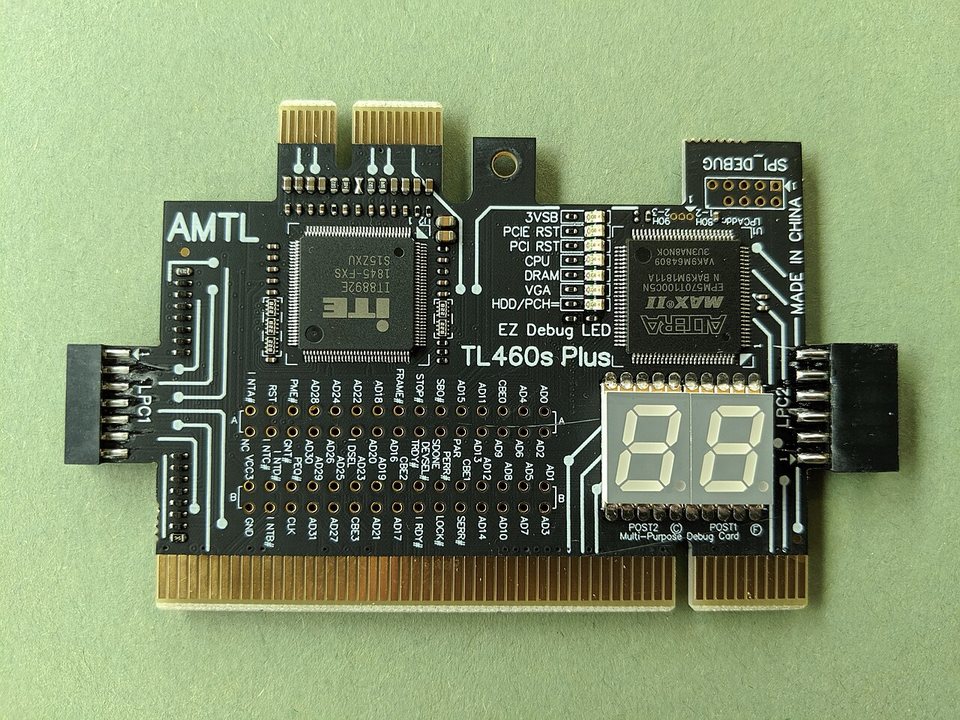
The POSTPower-On Self-Test: the automatic check at every start-up.It checks the processor, the RAM and the graphics card.If there is a problem: beeps, lights or a two-digit code.The meaning of the beeps depends on the brand: read the manual.Photo: Markus Kuhn, CC0 This diagnostic card shows the POST code. Many motherboards have CPU, DRAM, VGA and BOOT lights.
Entering the BIOSPress a key several times, just after turning on. The key depends on the brand.Missed it? Windows opens: restart and press earlier.Another way in Windows 11: Settings, System, Recovery, Advanced startup, then follow the screens to “UEFI Firmware Settings”. Shut downTurn the PC off completelyTurn onPress the power buttonPress quicklySeveral times on your brand's keyDoneThe BIOS menu appearsEach brand's keyHPBIOS F10USB drive F9DellBIOS F2USB drive F12Lenovo IdeaPadBIOS F2USB drive F12Lenovo ThinkPadBIOS F1USB drive F12ASUS laptopBIOS F2USB drive EscAcerBIOS F2USB drive F12MSI laptopBIOS DelUSB drive F11SamsungBIOS F2USB drive EscToshiba, DynabookBIOS F2USB drive F12Sony VAIOBIOS F2USB drive F11FujitsuBIOS F2USB drive F12HuaweiBIOS F2USB drive F12Microsoft SurfaceBIOS Volume +USB drive Volume −ASUSBIOS F2 or DelUSB drive F8MSIBIOS DelUSB drive F11GigabyteBIOS DelUSB drive F12ASRockBIOS F2 or DelUSB drive F11It can change with the model: look at the start-up message or the manual.
Useful settingsWhat technicians change most often.Save and exit with F10.Write down or photograph a setting before changing it.Do not change the voltages unless you know what you are doing. XMP, EXPOGives the RAM its rated speedVT-x, AMD-V (SVM)Virtualization, for VirtualBoxFansSilence or coolingDate and timeWrong if the CMOS battery is flatPasswordProtects access to the BIOSOptimized DefaultsRestores the default settings
SATA modeHow the motherboard talks to SATA drives.Changing this mode after installation can stop Windows from starting. IDEVery oldAHCIThe normal mode todayRAIDSeveral drives together
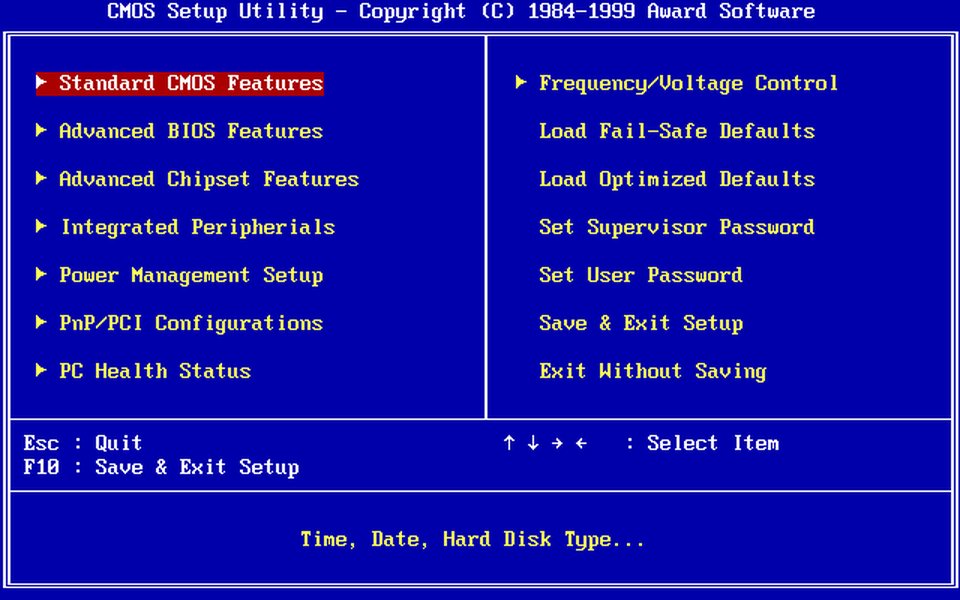
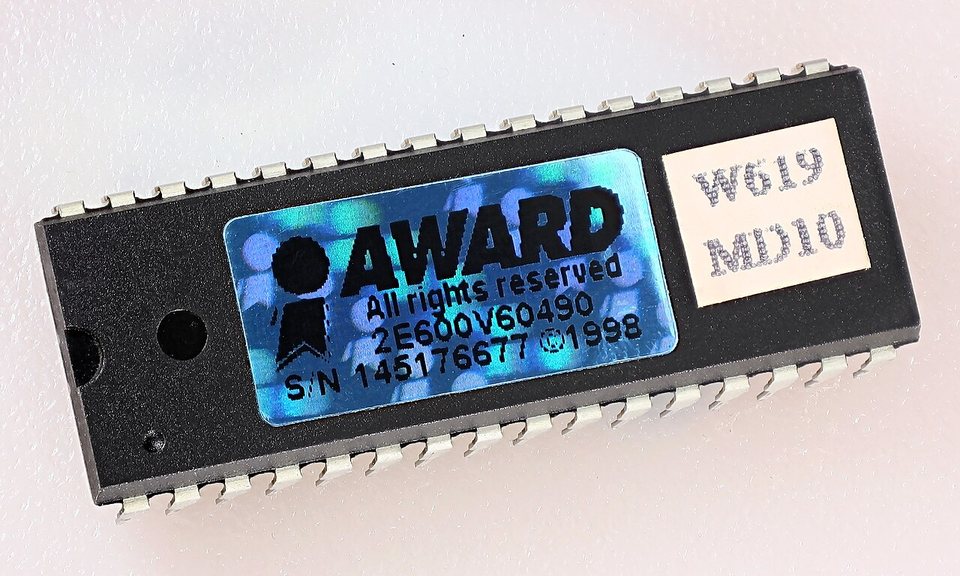
Legacy modeThe old BIOS boot. It reads the first sector of the drive: the MBR.MBR disk: 2 TB and 4 primary partitions at most.Needed for some old systems.CSM: a UEFI option that imitates Legacy mode.Photo: Award Software International Inc., recreated by User:Kephir, public domain
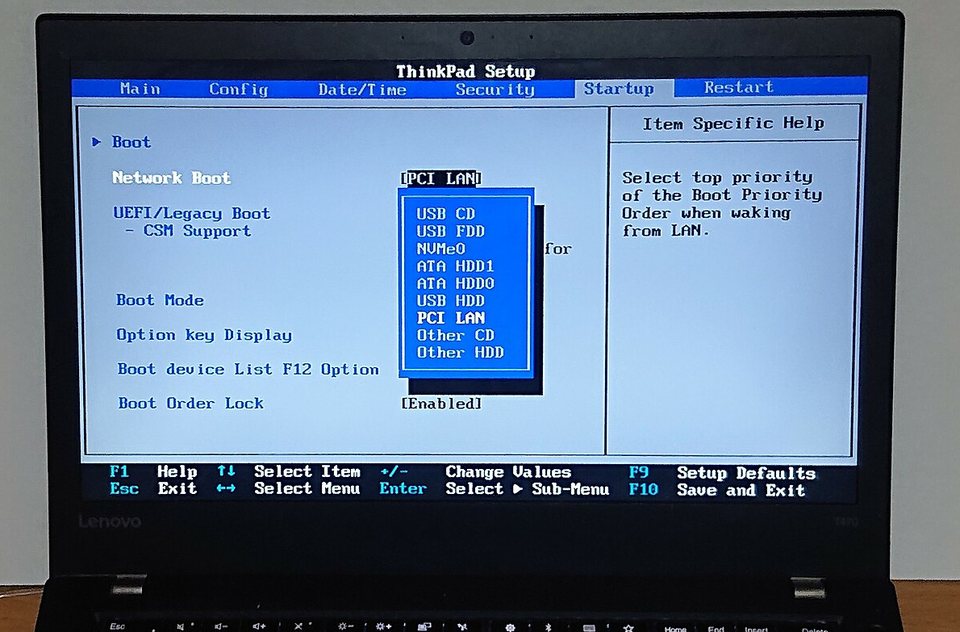
UEFI modeModern booting. It reads an .efi file on the drive's EFI partition.The EFI partition (ESP) is FAT32.Goes with a GPT disk.Boots faster and allows Secure Boot.Photo: Paowee, CC BY-SA 4.0
Legacy or UEFI?For a recent PC: UEFI and GPT. The mode and the disk type must match.Windows 11 requires UEFI, a Secure Boot capable PC and TPM 2.0.To check: Windows + R, msinfo32, “BIOS Mode” line: UEFI or Legacy. LegacyOld mode, released with the first PCsMBR disk2 TB maximum4 primary partitionsNo Secure BootText screen, keyboardUEFICurrent modeGPT diskMore than 2 TB128 partitions under WindowsSecure Boot possibleOften graphical, with a mouseDo not switch from Legacy to UEFI on a PC that is already installed: it will not start as long as its disk stays MBR. Back up before any conversion.
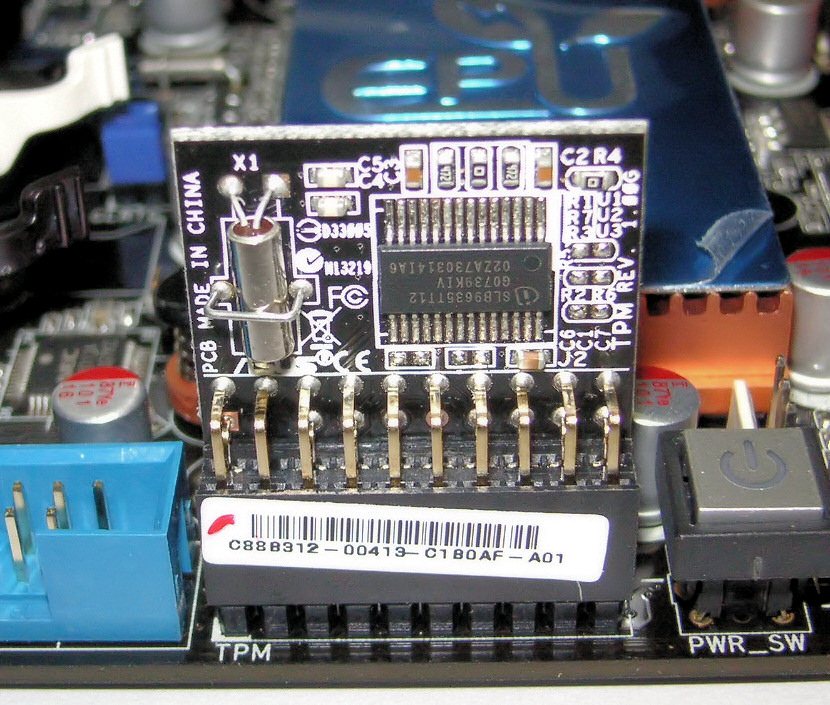
Secure Boot and TPMTwo protections. Secure Boot only accepts signed boot loaders, the TPM keeps the encryption keys.Windows 11 requires TPM 2.0.The TPM can be a chip, or built into the processor (Intel PTT, AMD fTPM).Photo: FxJ, public domain If BitLocker is on, keep the recovery key before touching these settings.
Boot orderThe list of drives tried, from first to last (Boot Order).To install a system: the USB drive first, or better, the Boot menu just once.After installation: the system drive first.“No bootable device”: no bootable drive was found. USBInstall a systemWindows Boot ManagerStart Windows in UEFINetwork (PXE)Boot from a server
Preparing the boot driveA USB drive that boots the PC to install a system.Use a drive of 8 GB or more: it will be erased.Download the ISO image from the official website. Back upCopy the files from the driveChooseThe ISO image and the drive, in Rufus or the Media Creation ToolConfigureGPT and UEFI, or MBR and BIOSCreateWait until the end, then ejectBootBoot menu key, then the USB driveRecent PCGPT scheme, UEFI system (non CSM)Old PCMBR scheme, BIOS systemFAT32Read by every UEFI, files of 4 GB maximumSee the Windows 11 course
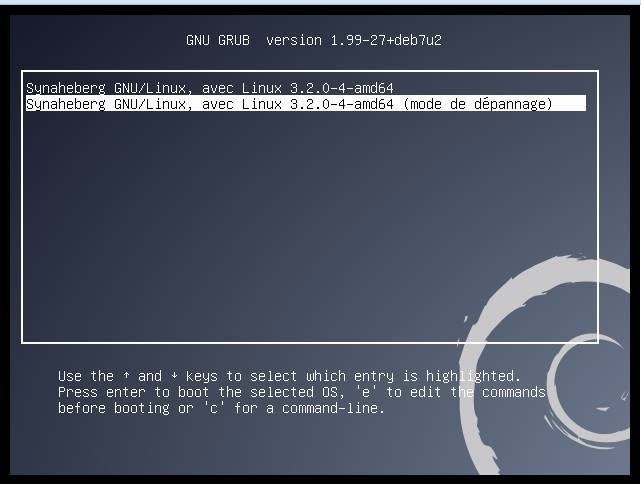
From the button to the systemWhat happens at every start-up.Photo: Bastien LANGUEDOC, CC BY-SA 4.0 ButtonThe power supply startsPOSTHardware checkBIOS / UEFIReads the settingsOrderLooks for the first bootable driveLoaderWindows Boot Manager or GRUBKernelThe system starts
Updating and resettingTwo operations to do only when useful, following the manual.Update: the file for the exact model, on the manufacturer's website.Never cut the power. Laptop: battery and charger plugged in.Reset: Load Optimized Defaults, the CLRTC (Clear CMOS) jumper, or the battery removed, PC unplugged.Photo: Mister rf, CC BY-SA 4.0
ApplicationsSoftware made for one task: writing, browsing, drawing, calculating.Word processor, browser, video player.
AntivirusSoftware that detects and blocks malicious programs. VirusAttaches to a file and copies itselfWormSpreads on its own across the networkTrojan horseHides inside a useful programRansomwareEncrypts files and demands moneySpywareSteals information
Operating systemMain software that manages the hardware, files and programs. Windows 72009No longer updatedWindows 82012No longer updatedWindows 102015Normal support ended in 2025Windows 112021Current versionUbuntu2004Free and open-source LinuxmacOS2001Apple computersAndroid2008Phones and tabletsSee the installation courses
DriversSoftware that lets the system use a specific component.Get them from the system updates or from the manufacturer.
Firmware (BIOS, UEFI)The first software to run at power-on. It checks the hardware, then starts the system. BIOS1981Old, simple screen, MBR diskUEFI2000sReplaces the BIOS, GPT disk, secure bootSee the whole BIOS section
PartitionsParts of a disk used as separate disks. MBRUp to 2 TB, 4 primary partitionsGPTVery large disks, goes with UEFI
File systemHow files are organized on a partition. FAT321996Files up to 4 GB, USB drivesNTFS1993Windows disksexFAT2006USB drives and memory cardsext42008Linux disksAPFS2017Apple disks
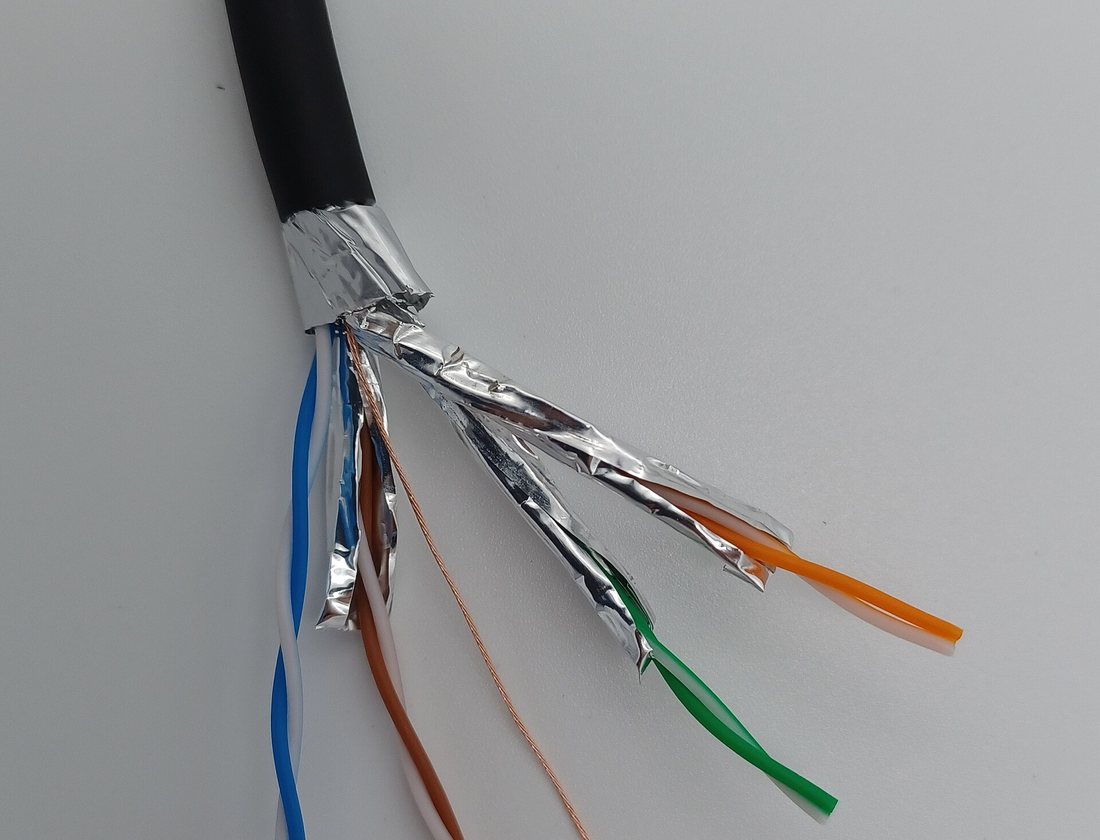
Network cable (twisted pair)A cable with 8 copper wires, twisted in pairs. It connects the network devices.100 metres maximum between two devices.UTP: unshielded. FTP or STP: shielded, for places with interference.Photo: Mx. Granger, CC0, cropped CategoriesCat 5e1 Gbit/s100 MHzU/UTPCat 61 Gbit/s250 MHzU/UTPCat 6A10 Gbit/s500 MHzU/FTPCat 710 Gbit/s600 MHzS/FTPCat 840 Gbit/s2000 MHzS/FTP · 30 mU: unshielded · F: foil · S: braid. The 2nd letter is about the pairs.Cat 6: 10 Gbit/s possible, but only over 55 m. Cat 8: for server rooms.
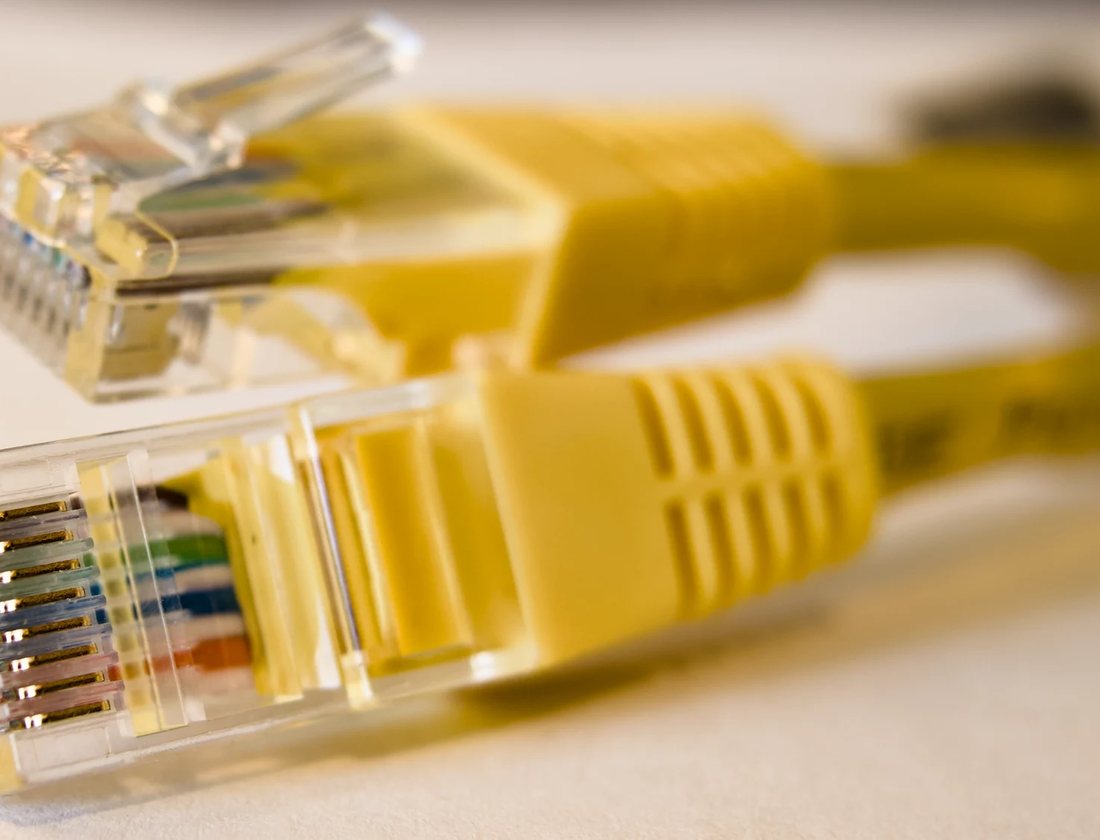
RJ45 connectorPlastic plug with 8 contacts, at the end of the network cable.It is fitted with a crimping tool.Its exact name: 8P8C (8 positions, 8 contacts).Photo: Wikideas1, CC0 See the PC's RJ45 port
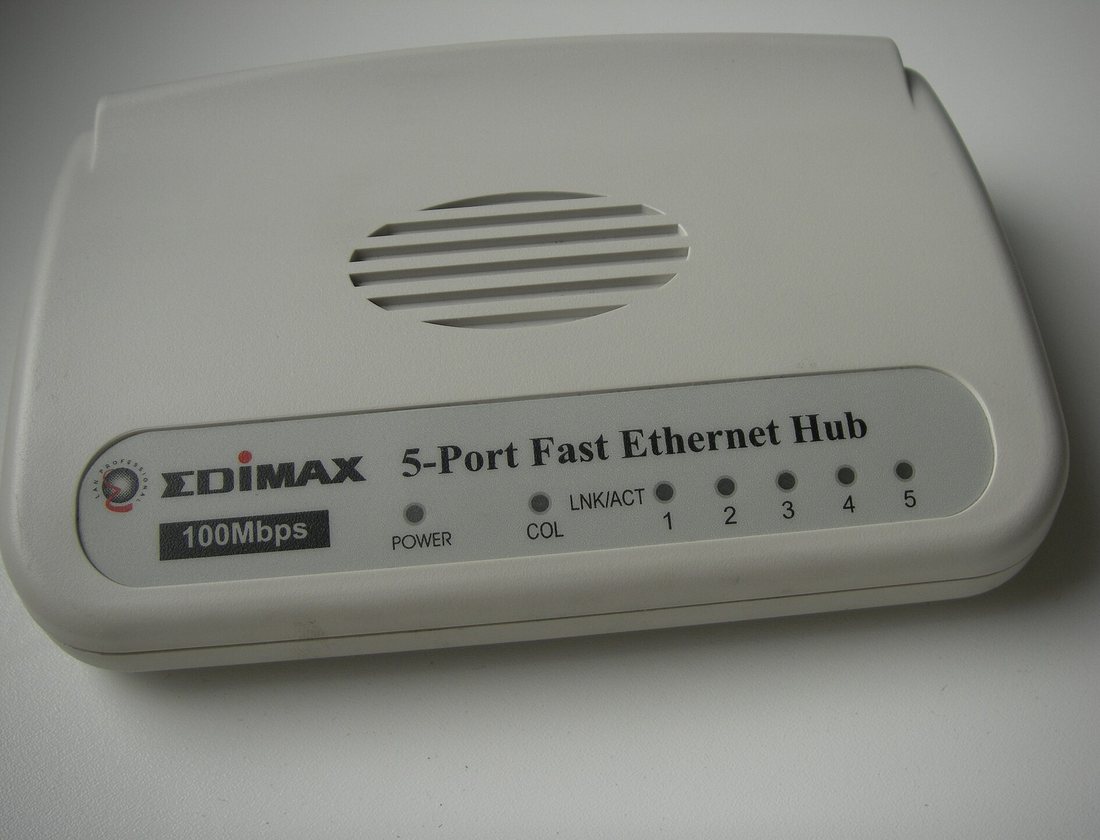
HubA box that sends everything it receives to all its ports.Everyone receives everything: the network slows down.Old: replaced by the switch.Photo: George Shuklin, public domain
Hub, switch or router?Three boxes that look alike, but do not do the same job. HubSends to all ports.SwitchSends only to the right device, using the MAC address.RouterConnects two networks, using the IP address: the home and the Internet.See the switch · See the router
An office networkHow everything connects, from the box to the PCs.The cables from the sockets arrive at the patch panel, in the rack.Short patch cords connect the panel to the switch.The switch is connected to the box, which provides the Internet. ceilingInternetBox / routerRackswitchpanelSocket 1Socket 2Socket 3PCPrinterIP phoneAccess point (PoE)Laptop (Wi-Fi)cable in the wallpatch cordClick a device to open its sheet.
Internet box and modemThe provider's box combines a modem, a router, a switch and Wi-Fi.The modem converts the line signal (fibre, ADSL, 4G) for the network.For fibre, the modem is also called an ONT.
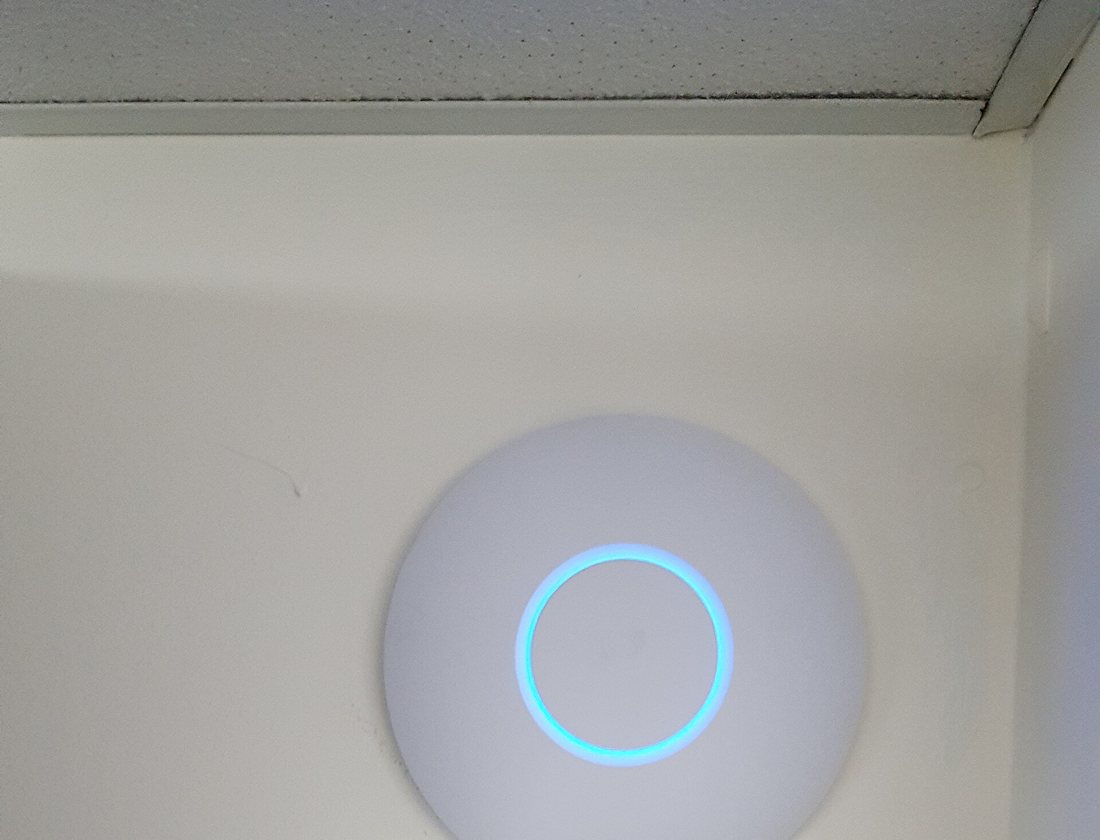
Wi-Fi access pointIt adds Wi-Fi to a wired network.Often fixed to the ceiling, in the middle of the room.It is often powered through the network cable (PoE).Photo: ServerGuruBrisbane, CC BY-SA 4.0, cropped
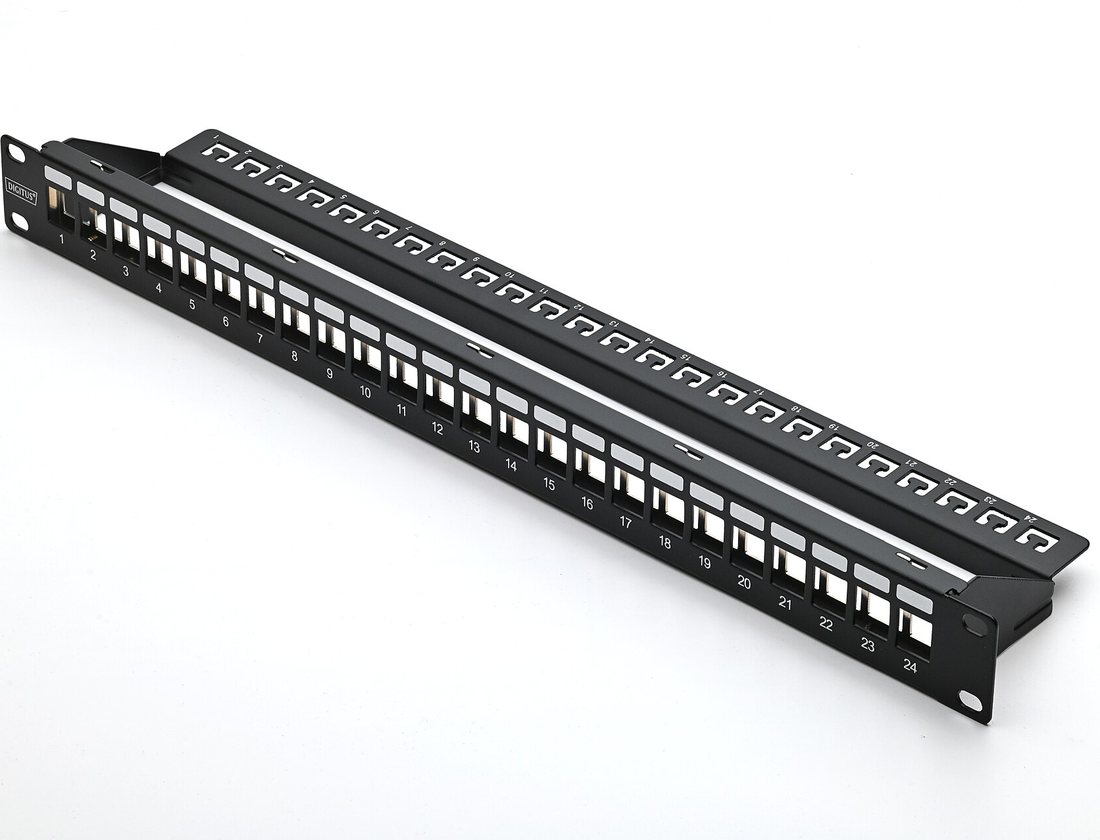
Rack and patch panelIn a company, the cables from the offices arrive at a panel of sockets, in a cabinet: the rack.Short cables (patch cords) connect the panel to the switch.Each socket has a number, the same as the socket in the office.Photo: Phiarc, CC BY-SA 4.0, cropped
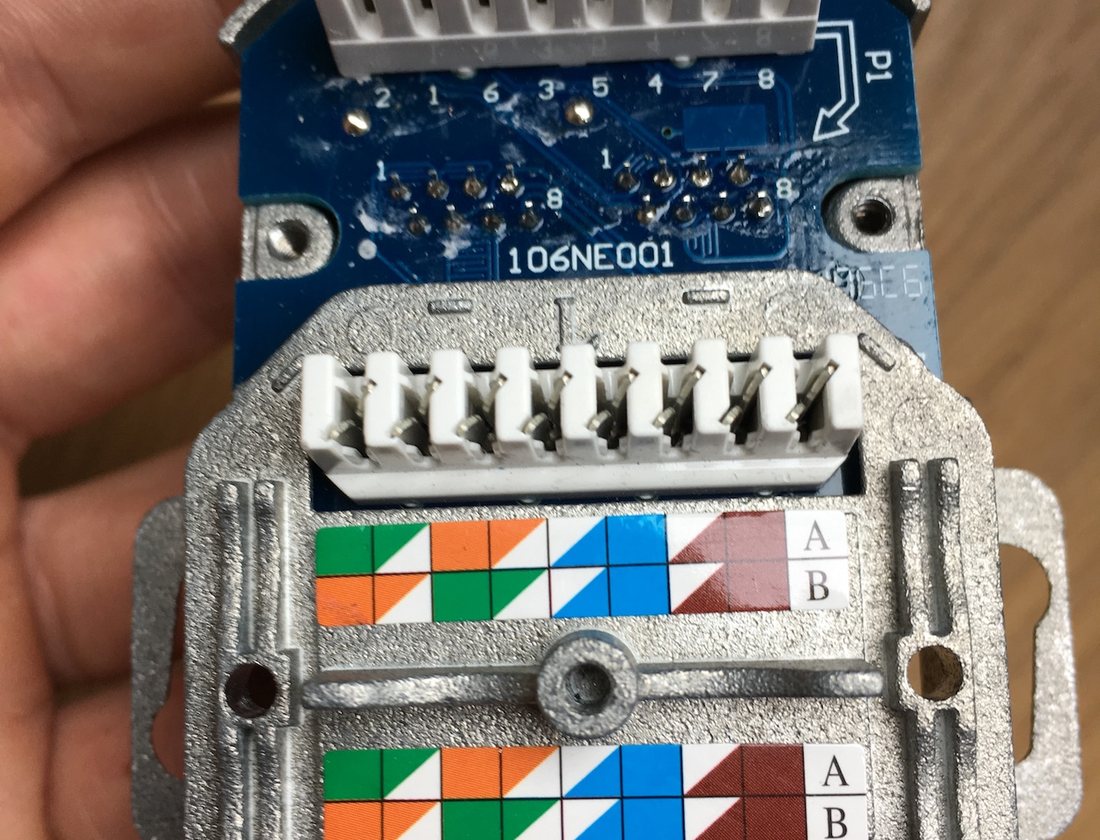
RJ45 wall socketA socket in the wall, connected to the patch panel by a hidden cable.The PC is connected to it with a patch cord.Photo: 2pem, CC BY-SA 4.0, cropped
Speed: Mbit/s and Gbit/sAmount of data sent per second.The network runs at the speed of the slowest device.1 byte = 8 bits: 100 Mbit/s is about 12 MB/s. 10 Mbit/sVery old, 2 pairs100 Mbit/sFast Ethernet, 2 pairs: pins 1, 2, 3 and 61 Gbit/sGigabit, all 4 pairs10 Gbit/sAll 4 pairs, Cat 6A
T568A and T568B standardsTwo orders to arrange the 8 wires in the RJ45.The most used: T568B.Only the orange and green pairs change places. T568A123456781 White-green2 Green3 White-orange4 Blue5 White-blue6 Orange7 White-brown8 BrownT568B123456781 White-orange2 Orange3 White-green4 Blue5 White-blue6 Green7 White-brown8 BrownConnector seen from the front: gold contacts towards you, clip underneath. Pin 1 on the left.Make a cable in Lab 10
Straight and crossover cableThe same order at both ends, or a different order.Straight (B and B): PC to switch or box.Crossover (A and B): formerly to connect two PCs or two switches.Today, Auto MDI-X adapts: a straight cable works almost everywhere. Straight cable (B and B)End 1 (T568B)End 21122334455667788Crossover cable (B and A)End 1 (T568B)End 21122334455667788
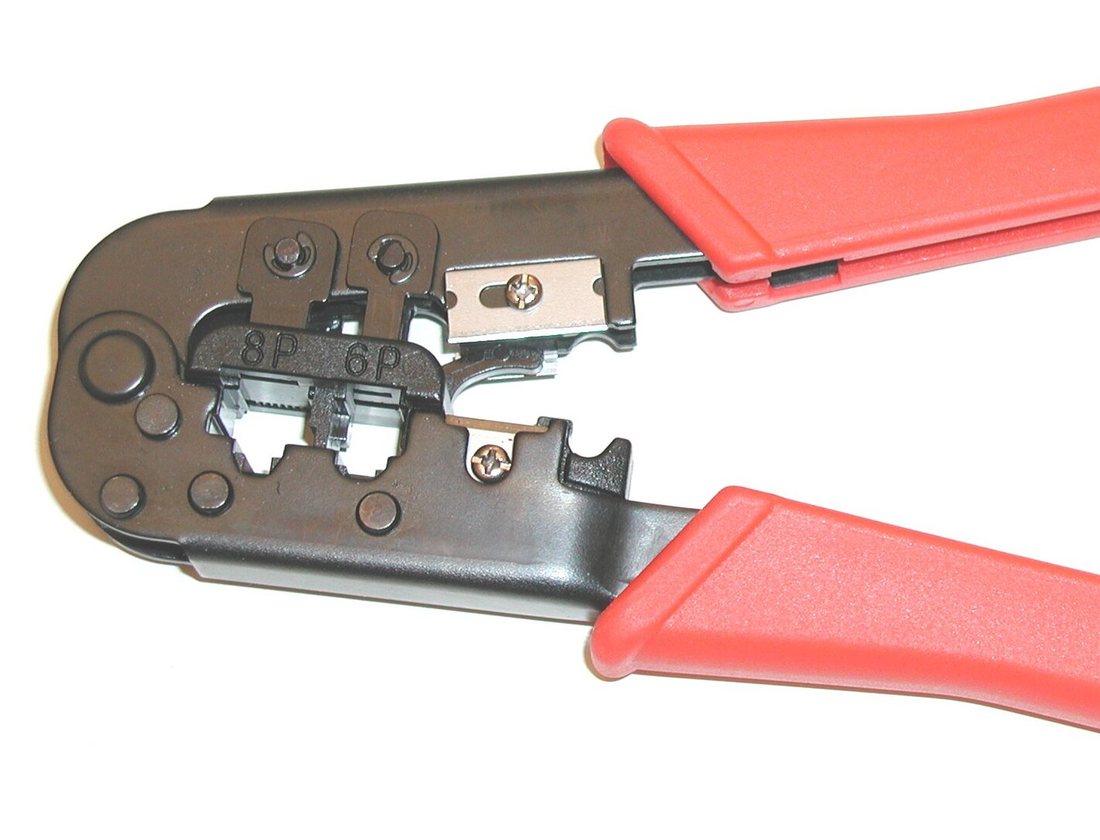
Crimping toolIt fixes the RJ45 connector to the end of the cable.It also cuts the wires and strips the jacket.Pass-through tool and RJ45: the wires come out at the front of the connector, so you check the order before crimping. Easier for beginners.Photo: Magma, CC BY-SA 3.0, cropped
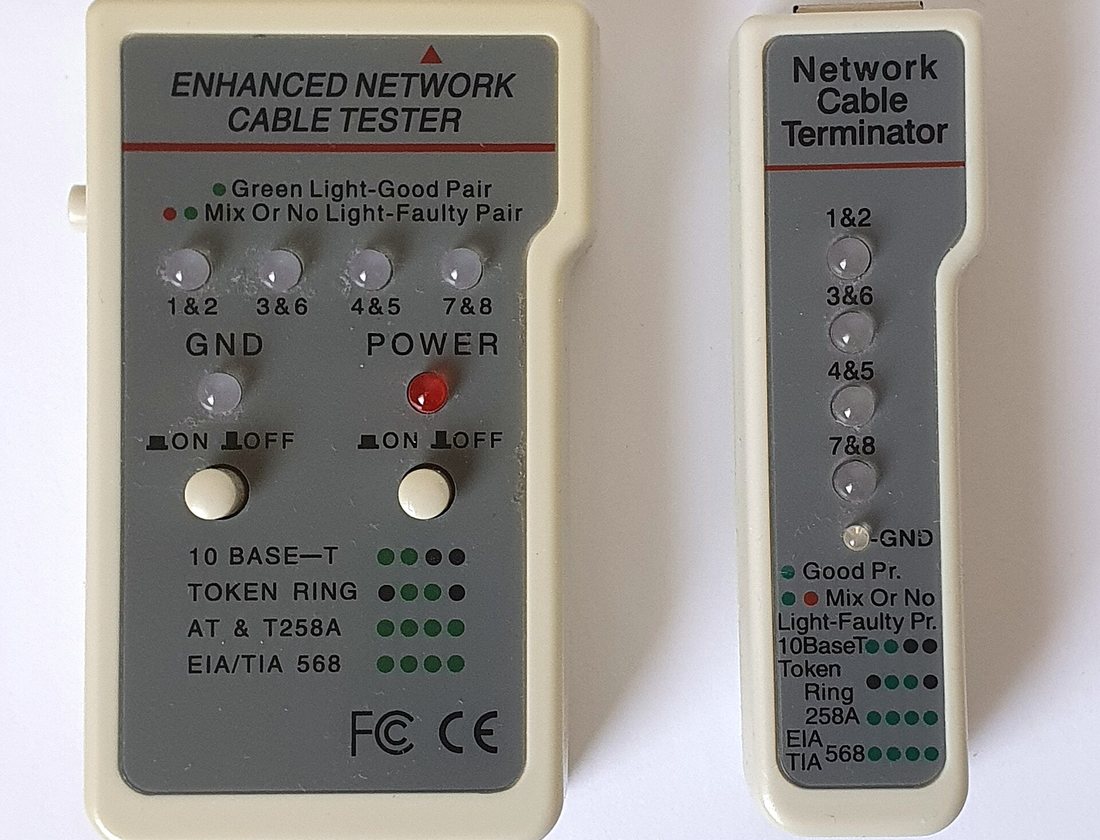
Cable testerIt checks that the 8 wires of the cable are properly connected.Straight cable: lights 1 to 8 come on in order.Crossover cable: 1 with 3, 2 with 6.Photo: Reise Reise, CC BY-SA 4.0, cropped

 2
 3
 4
 5
 6
 7
 8
 9
 10
 1
 2
 3
 4
 5
 6
 7
 8
 9
 10
 11
 12
 13
 14