
Create a virtual machine
A practice computer inside your computer, with no risk.
- Beginner
- 45 minutes
- PC with 8 GB or more
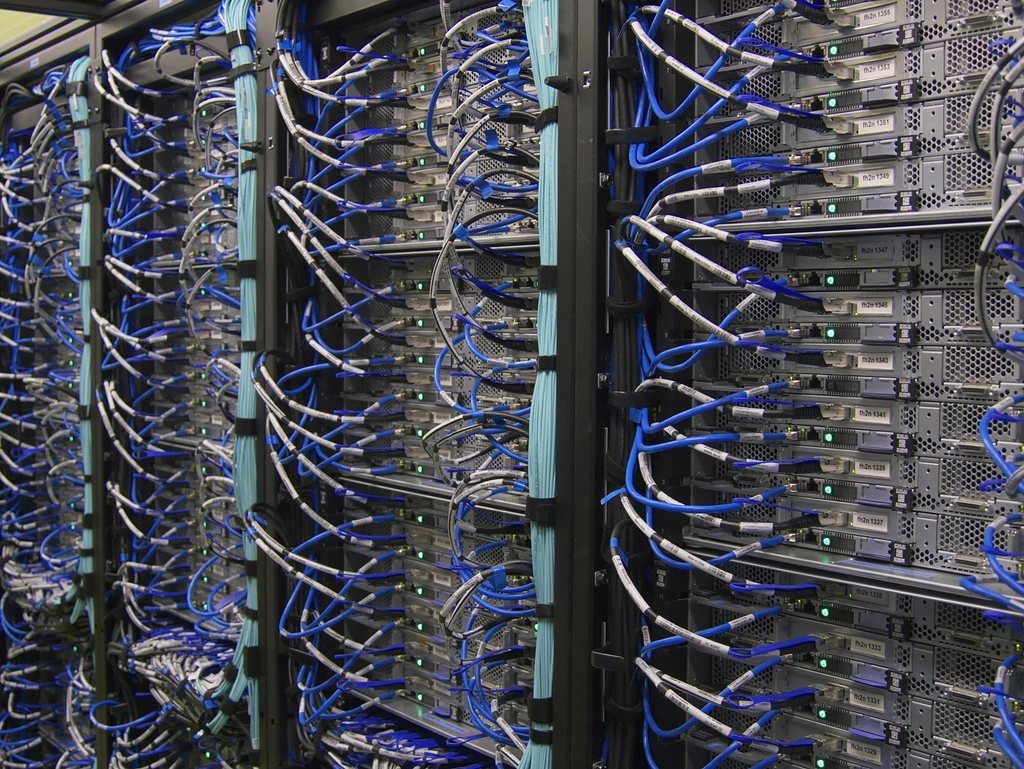
A PC inside your PC
You install, you test, you break things. Your real PC is not at risk.
- Windowsguest
- Ubuntuguest
- Your testsguest
- HostYour computer and its system.
- GuestThe system installed in the virtual machine (VM).
- Virtual diskA simple file that acts as the VM's disk.
Is your PC ready?
Press Ctrl + Shift + Esc. Open Performance, then CPU.
At the bottom, read the Virtualization line: it must say Enabled.
Disabled? Enter the BIOS and enable Intel VT-x or AMD-V (SVM). Find your PC's key
- 8 GBof memory minimum, 16 GB preferably.
- 60 GBfree on the disk.
VirtualBox or VMware?
Both are free. We use VirtualBox.
- VirtualBoxSimple, for Windows, Linux and macOS. No account needed.Official website
- VMware Workstation ProFor Windows and Linux. A free Broadcom account is required.Official guide
Warning: always download from the official website.
Install VirtualBox
Before you start: save your documents.
On the official website, click Windows hosts.
Open the downloaded file, then Next.
Accept the licence, then Next.
Keep everything, then Next.
The network will drop for a moment: Yes.
Python message: Yes, it does not matter.
Keep the shortcuts, then Next.
Click Install and wait.
Click Finish: VirtualBox opens.
Extension Pack: optional. It is free for personal or educational use, not in a company.
Create the machine
Get an ISO image. To start: Lubuntu, light and free.
VirtualBox 7.2: the screenshots are in French; a few buttons stay in English.
Click New.
Type the name
lubuntu-cours, choose your ISO and leave Unattended Installation unticked.
Windows in a VM: it needs its own licence to be activated.
Memory, processors, disk
The rule: never more than half of your PC.
Open Specify virtual hardware: memory 4096 MB, 2 processors.
Open Specify virtual hard disk: 25 GB. Then Finish.
Try it here
Find a good setting.
First start
Check that the ISO is in Storage, then click Start.
The Lubuntu menu appears: press Enter.
Choose your language (Français in the screenshots), then Try Lubuntu to try it without installing.
To stop: the cross, Power off the machine, then OK.
Mouse stuck? Press the right Ctrl.
VM very slow on Windows? Hyper-V may be active. Do not turn off a protection without understanding its effect.
Your “undo” button
A snapshot keeps the state of the machine. Take one before each test.
With the VM off, open Snapshots, then Take.
Give it a name, then Ok.
To go back: choose the snapshot, then Restore.
Confirm with Restore.
Try it here
Warning: a snapshot is not a backup. It disappears with the VM.
Graded exercise out of 100
You need 80 to pass the lab.